# 14 Most Useful Visual Studio Code Shortcuts To Improve Your Productivity
Visual Studio Code is the most widely used and most loved code editor for application development.
So in this article, we will see some of the widely used shortcuts which make developers' life easy and coding faster. So let's get started.
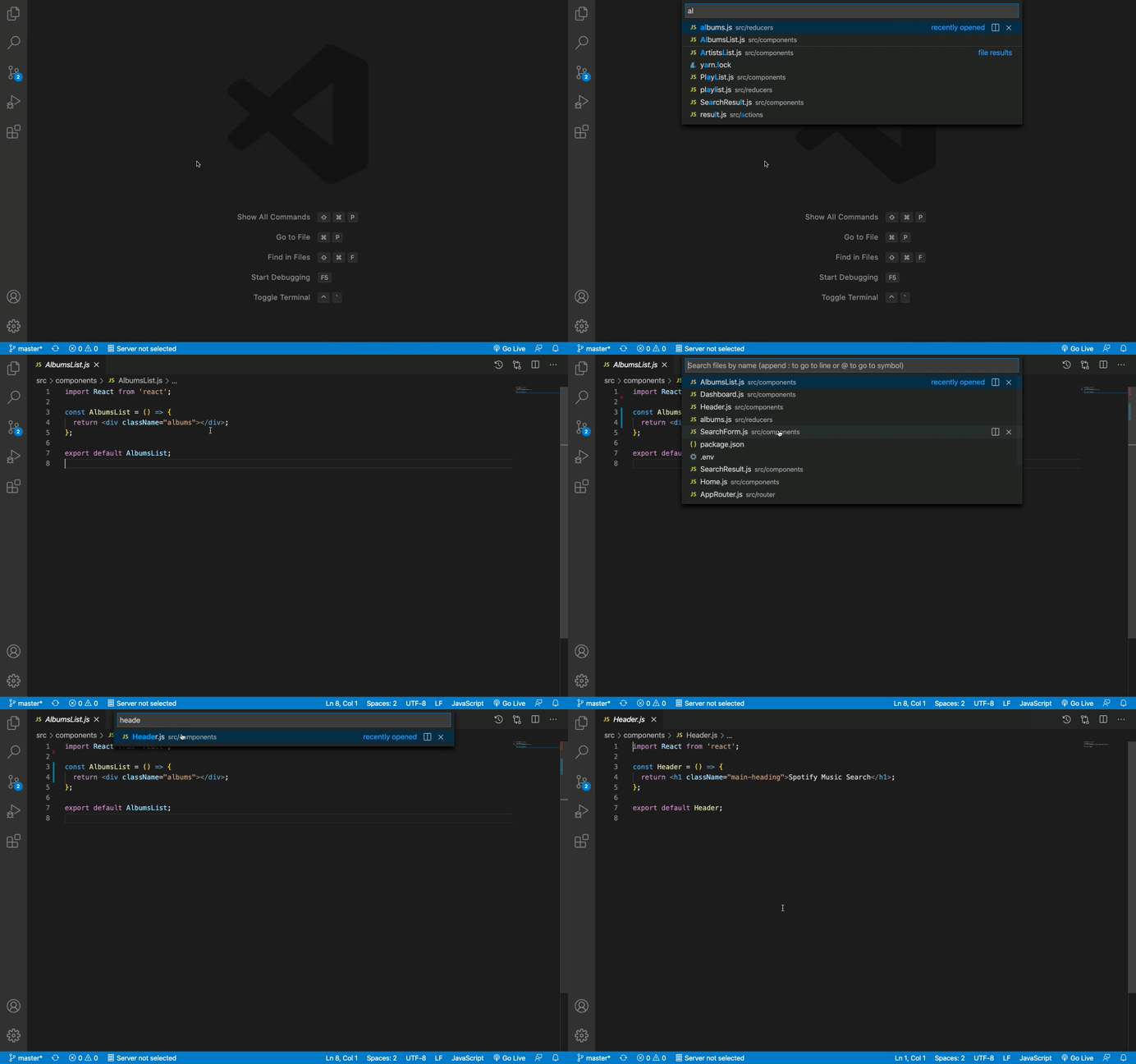
## 1. Quickly Search File
### On Mac
`Cmd` + `P` : Search file by name
### On Windows
`Ctrl` + `P` : Search file by name
## 2. Quickly Delete The Current Line
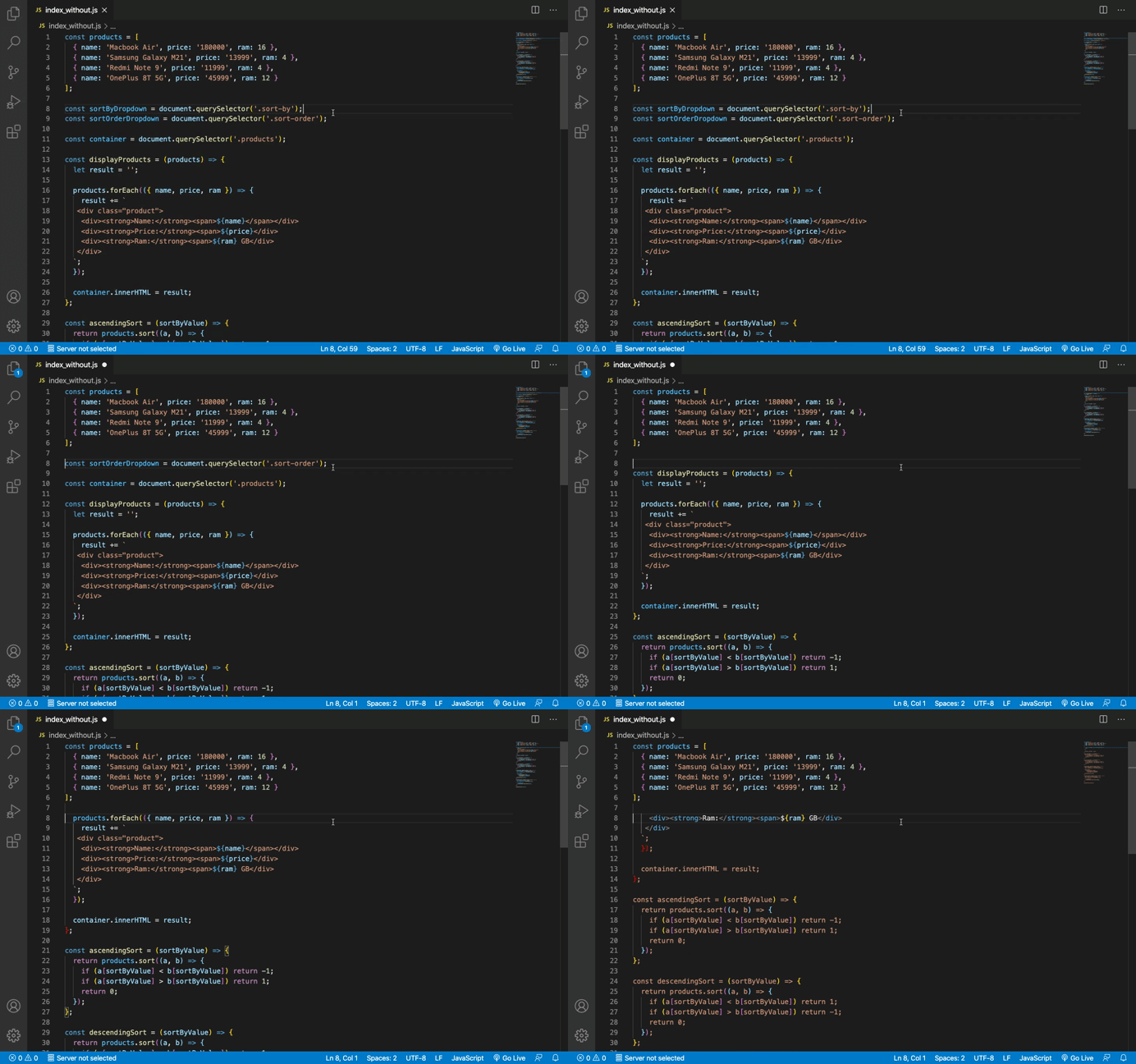
To delete the current line where the cursor is present, you can use the following shortcut.
### On Mac
`Cmd` + `X` : Delete current line
### On Windows
`Ctrl` + `X` : Delete current line
## 3. Add Multiple Cursors for Text Selection
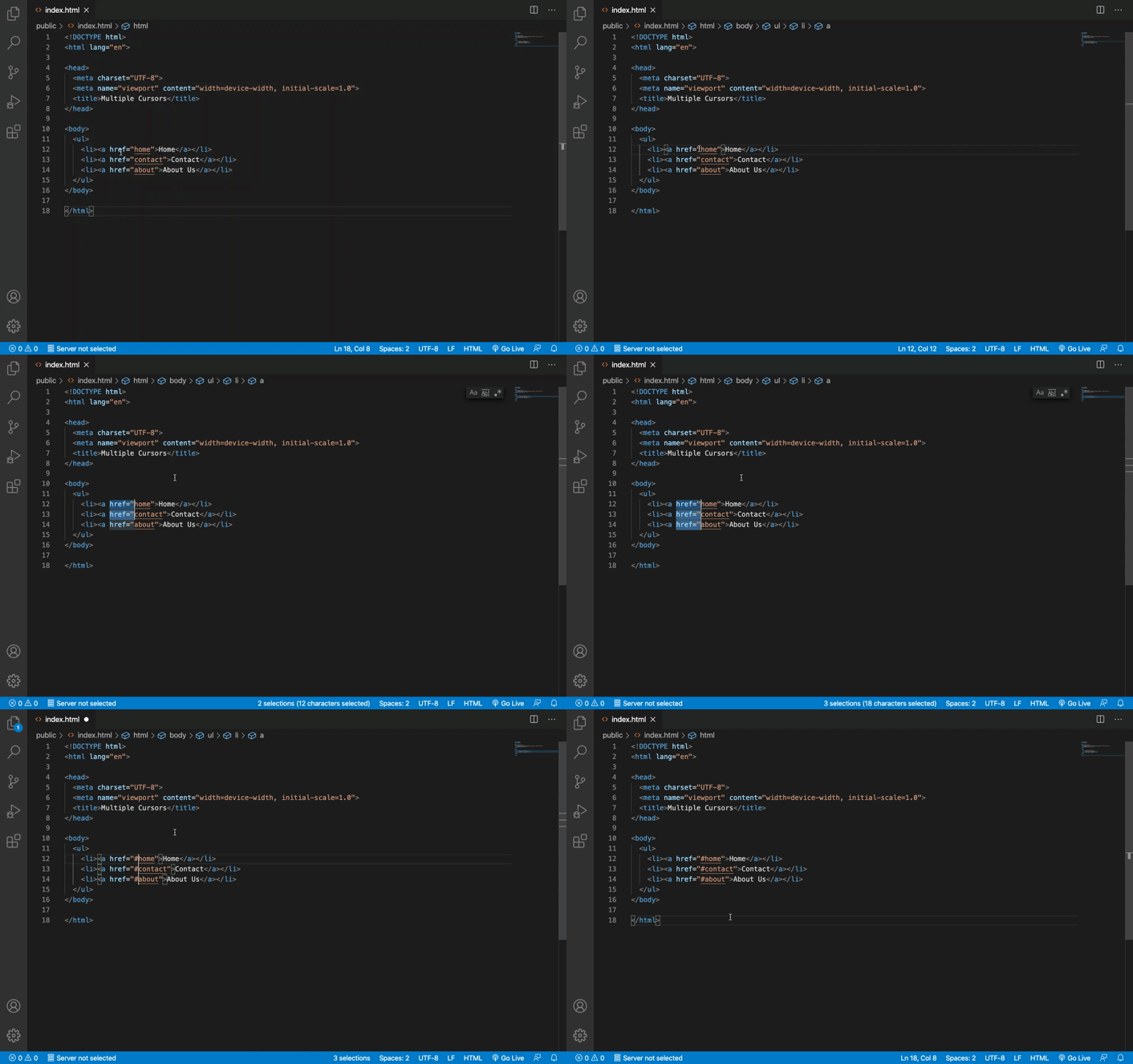
This is one of my favorite shortcuts. If you want to change the similar text at multiple places, then you can use the multiple cursors shortcut.
For that, first, manually select the text you want to replace or change and then press the following shortcuts depending on your operating system and then you can type anything that you want to add or replace with.
### On Mac
`Cmd` + `D` : Select next matching text
`Cmd` + `U` : Undo the last selected matching text
### On Windows
`Ctrl` + `D` : Select next matching text
`Ctrl` + `U` : Undo the last selected matching text
## 4. Navigate Back and Forth Between the Files
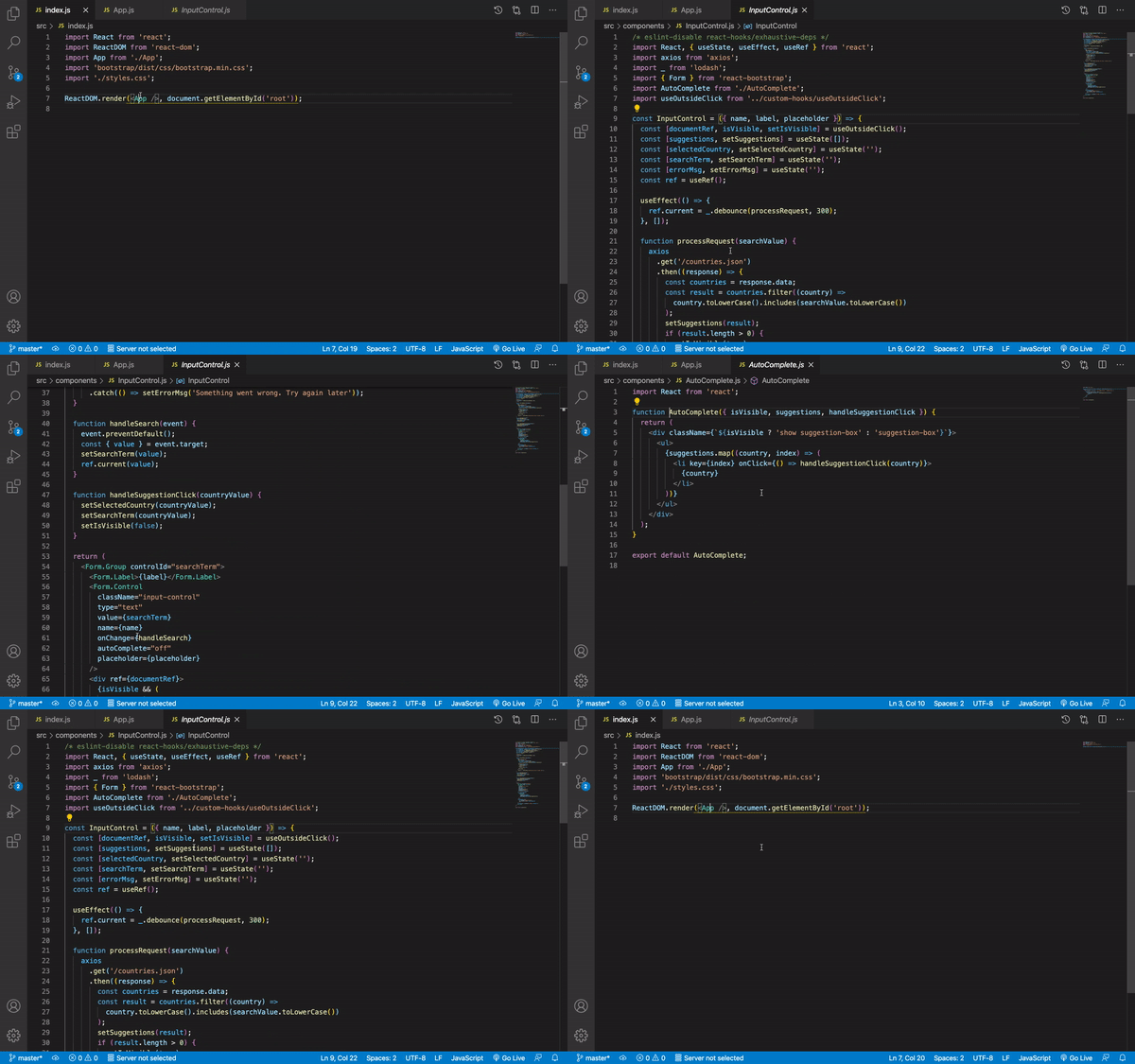
To Goto any function or component, we do `Ctrl` + `Click` but later we can lose track of where we came from. Therefore, we can use the following shortcut to know where our cursor was last time.
This shortcut comes really handy when debugging code when jumping between the code.
### On Mac
`Ctrl` + `-` : navigate backward
`Ctrl` + `Shift` + `-` : navigate forward
### On Windows
`Alt` + `←` : navigate backward
`Alt` + `→` : navigate forward
## 5. Toggle Sidebar
I like to code in full-screen mode in VS Code so there is less distraction.
You can easily toggle the sidebar using the following shortcut.
### On Mac
`Cmd` + `B` : Hide/Show Sidebar
### On Windows
`Ctrl` + `B` : Hide/Show Sidebar
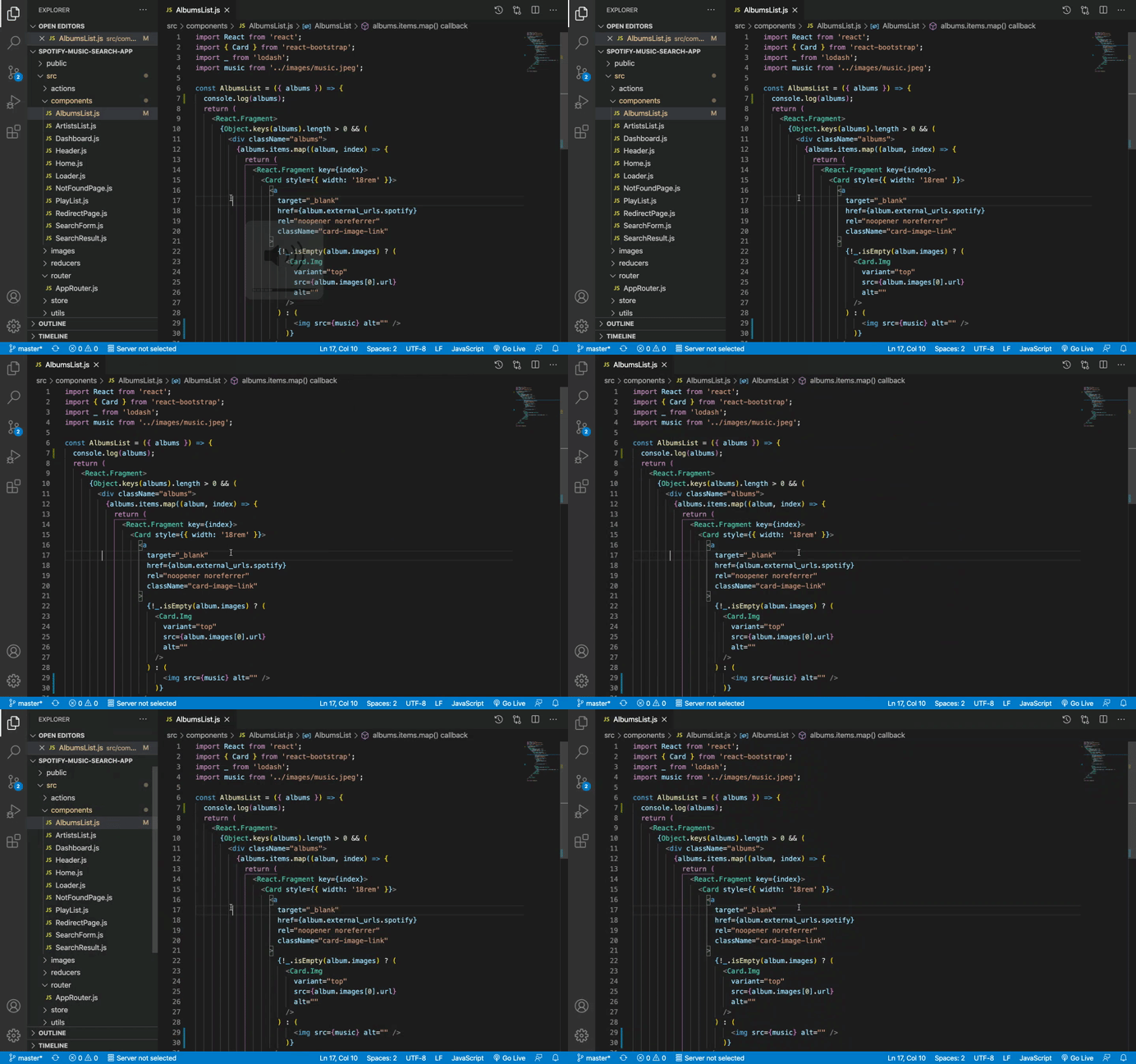
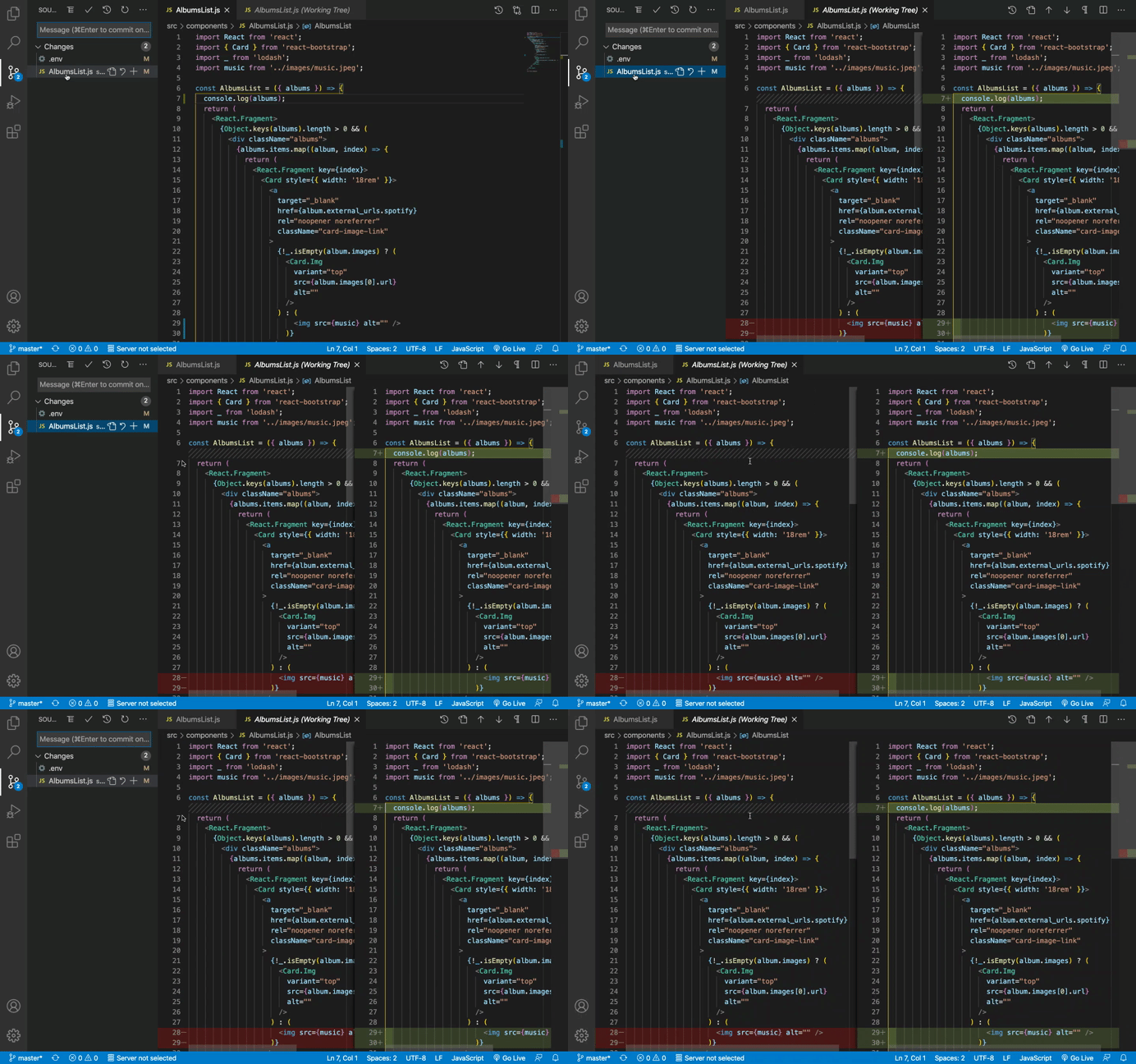
This shortcut also comes in handy when comparing changes done in the file and cannot be seen clearly because of the small size window as shown below.
## 6. Open Integrated Terminal
Instead of opening a separate terminal/command prompt, using this shortcut, you can open a terminal that is integrated right into the VS Code.
This keyboard shortcut is the same for windows and Mac.
`Ctrl` + `: ( Ctrl + tilde character which is just before the digit 1 on the keyboard)
Once one terminal is opened, you can open another terminal by clicking the + sign.
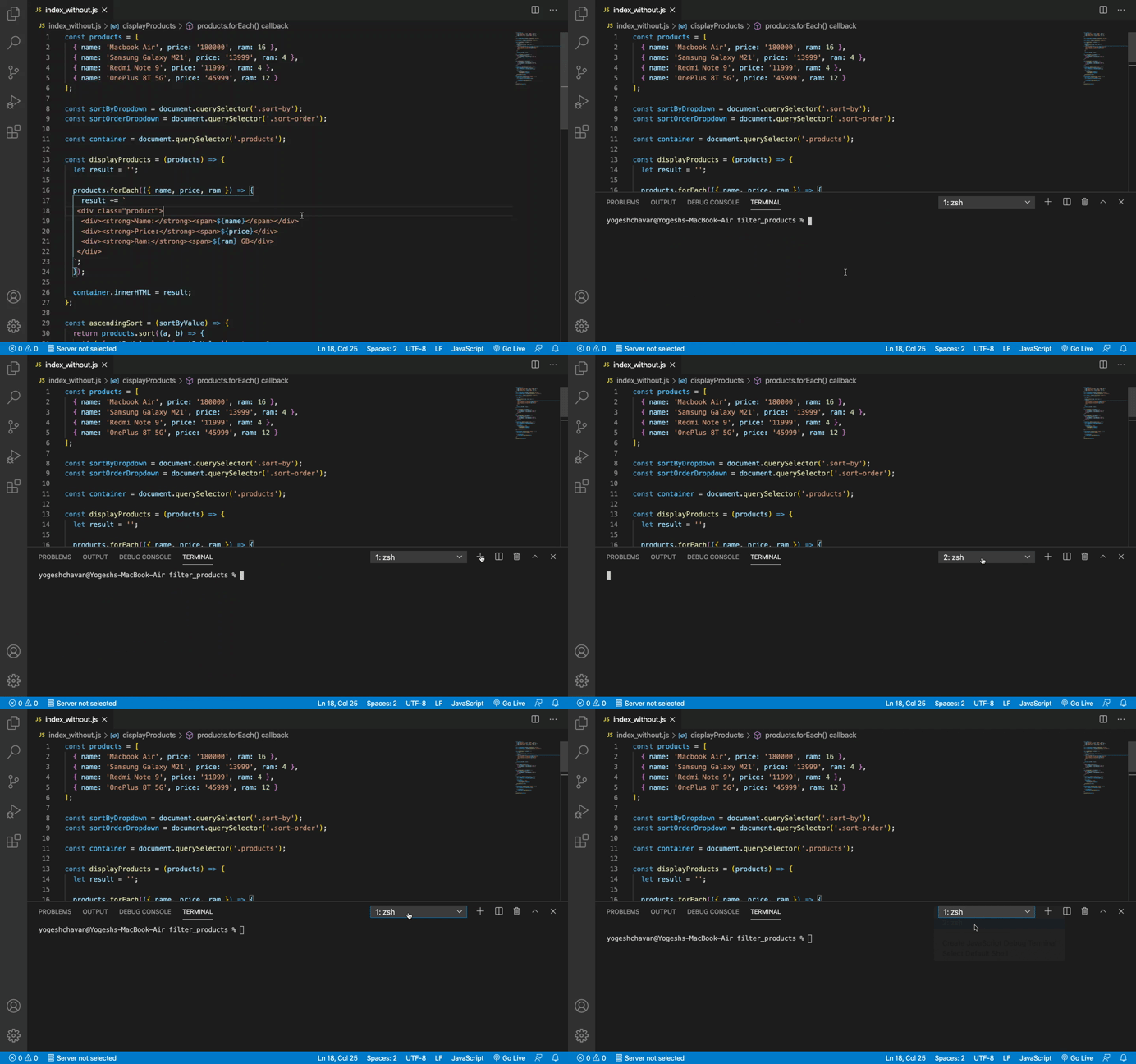
The nice thing about opening an integrated terminal is that the terminal automatically opens in your project folder so you don't need to use the `cd` command to navigate to your project folder.
## 7. Navigate to Specific Line Number In a File
If some error occurs in the application, you might see the filename along with the line number being displayed.
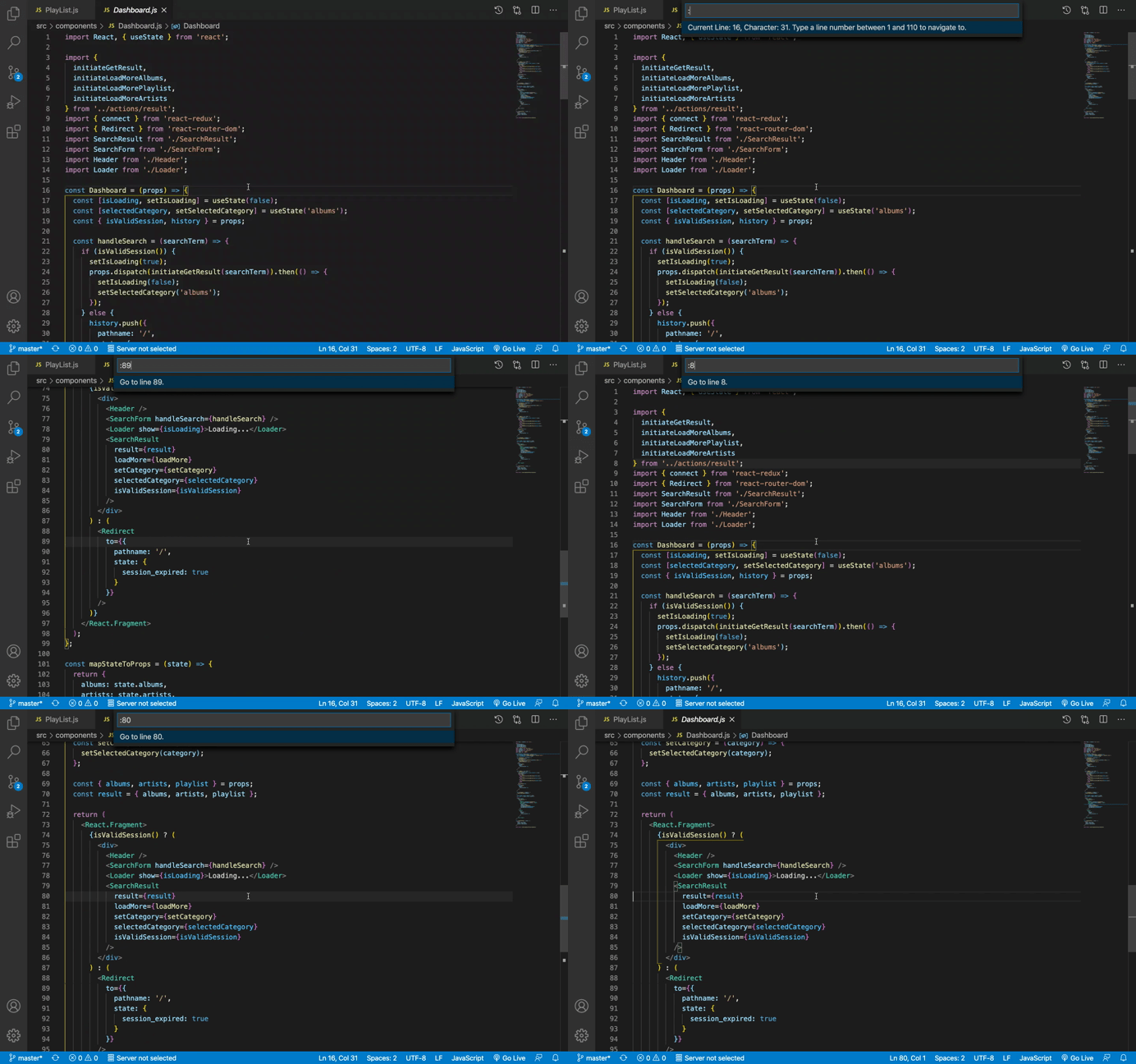
If the file is larger it's tedious to scroll up and down to go to a specific line. So instead you can use the following shortcut to directly go to that specific line.
This keyboard shortcut is the same for windows and Mac.
`Ctrl` + `G` - Go to specific line number
After pressing the above shortcut, a palette will open with `:` already added to it. Enter the line number you want to go to and hit enter to go directly to that line.
## 8. Search Text In All The Files
If you want to search for some text in all the files in the project, use the following shortcut.
### On Mac
`Cmd` + `Shift` + `F` : Search text in files
### On Windows
`Ctrl` + `Shift` + `F` : Search text in files
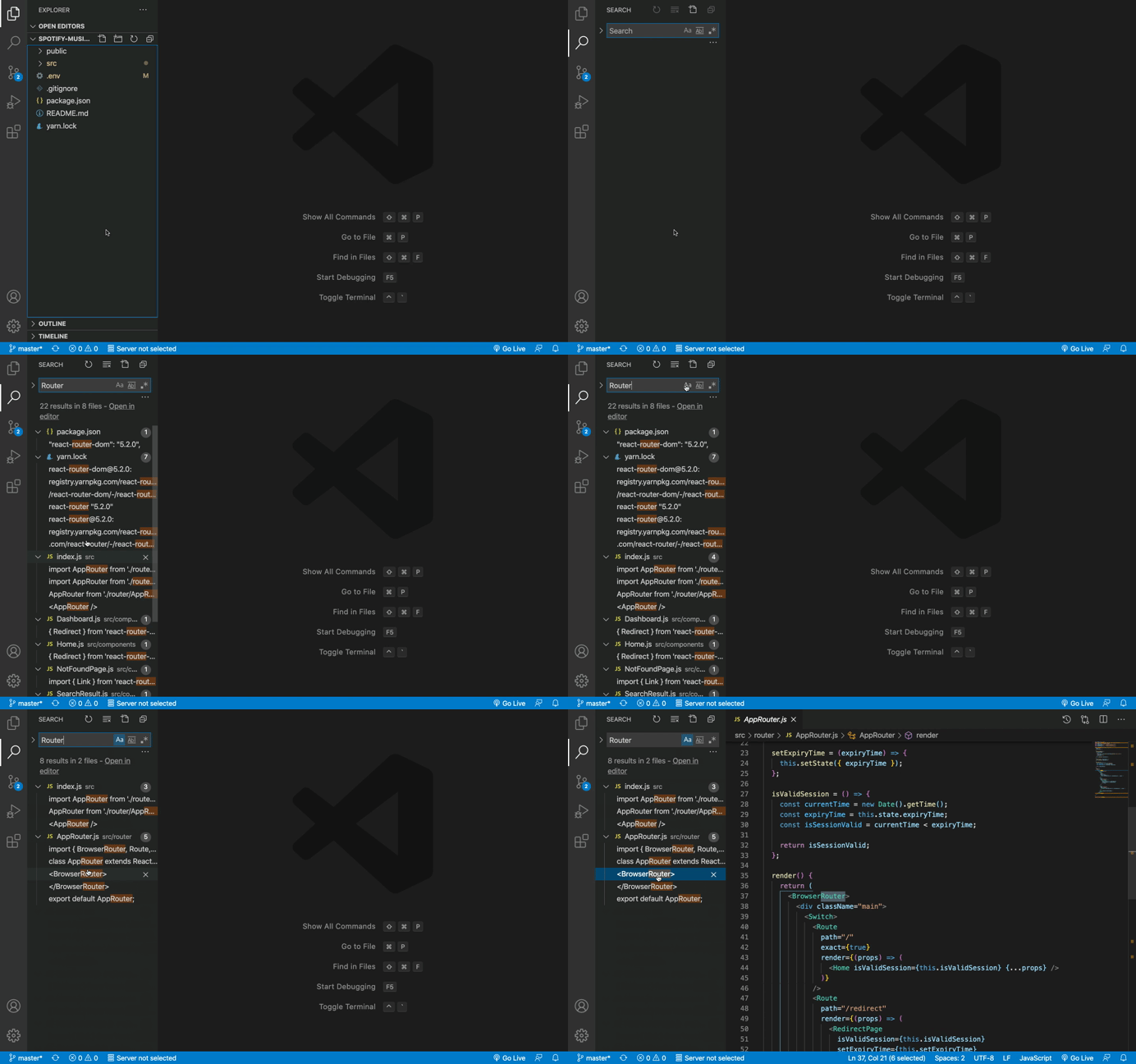
As you can see in the above Gif, we have clicked on the `Aa` icon, If we want to search for the exact match for the text.
## 9. Add or Remove Single Line Comment
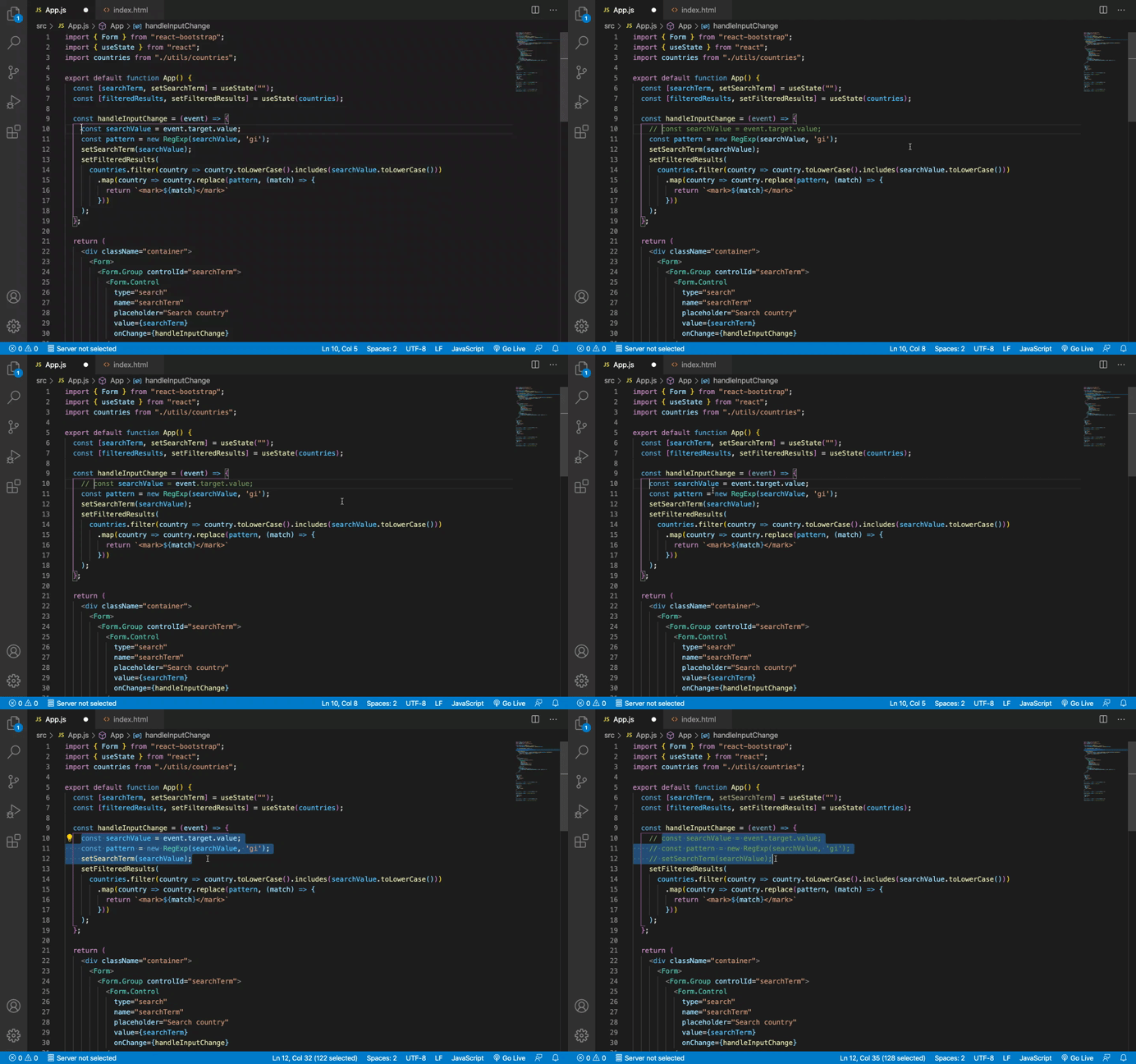
Using this shortcut you can quickly add or remove the single-line comment.
### On Mac
`Cmd` + `/` : Toggle the single-line comment
### On Windows
`Ctrl` + `/` : Toggle the single-line comment
## 10. Quickly Move Lines Up And Down
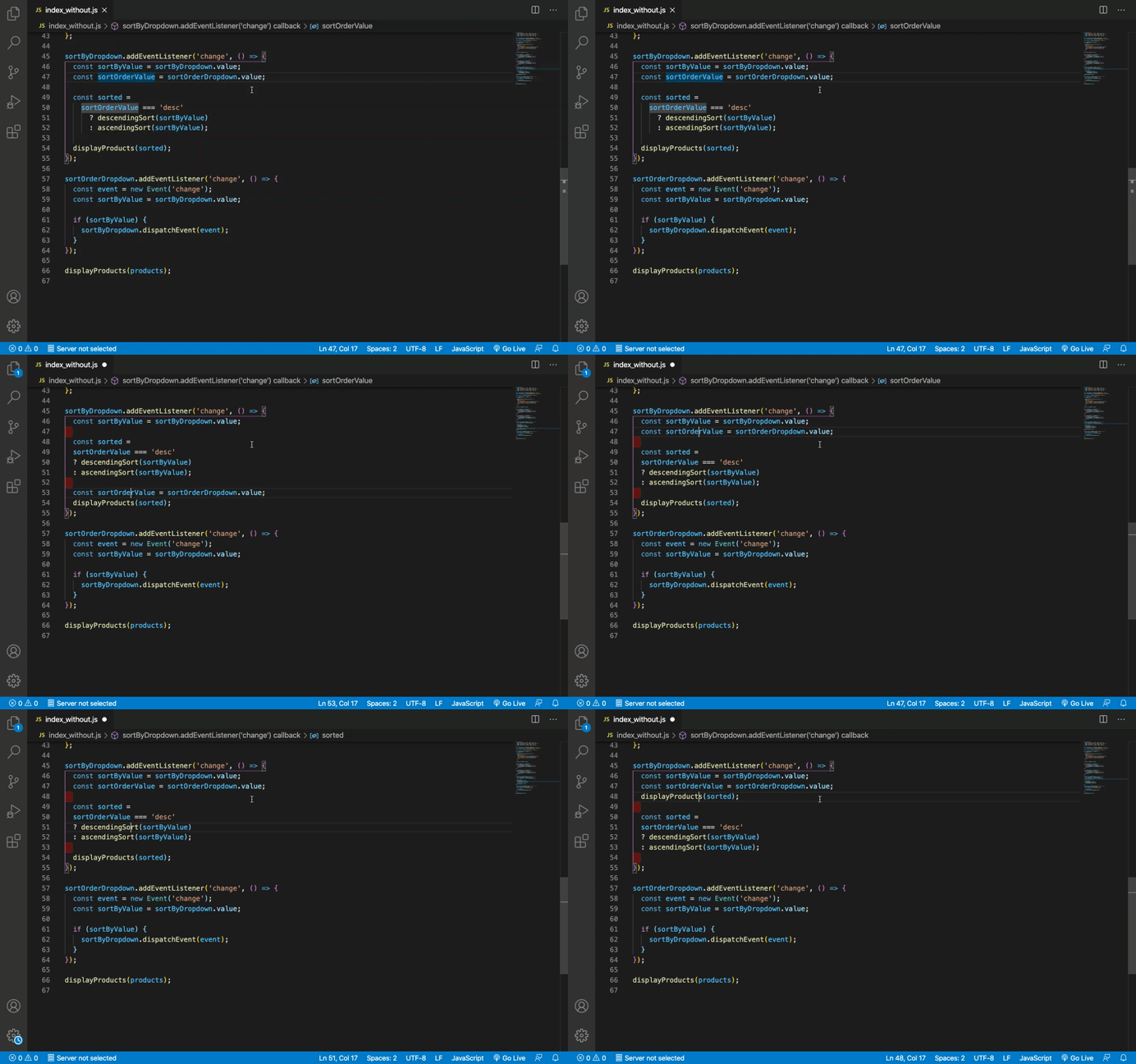
Using this shortcut you can quickly move any line after or before any other line.
### On Mac
`Option` + `↓` : Move line down
`Option` + `↑` : Move line up
### On Windows
`Alt` + `↓` : Move line down
`Alt` + `↑` : Move line up
## 11. Duplicate Lines
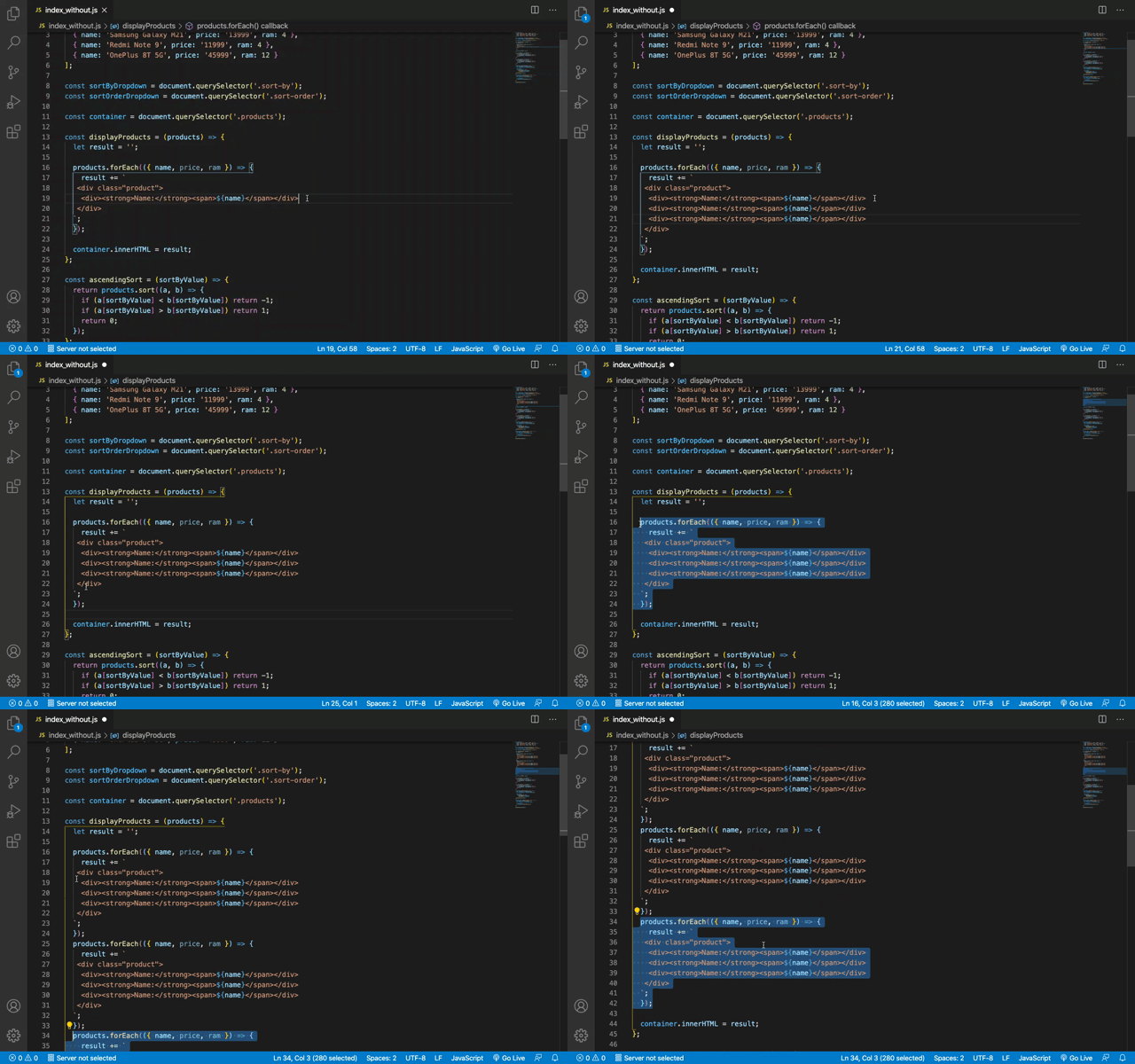
Using this shortcut you can quickly duplicate lines of code to avoid writing repetitive code.
### On Mac
`Option` + `Shift` + `↓` : Duplicate line down
`Option` + `Shift` + `↑` : Duplicate line up
### On Windows
`Shift` + `Alt` + `↓` : Duplicate line down
`Shift` + `Alt` + `↑` : Duplicate line up
## 12. Reopen Closed File/Tab
Sometimes by mistake, we close any open file or tab which so in that case, you can use this shortcut to re-open that closed tabs. You can keep pressing this shortcut until your desired file is not opened.
### On Mac
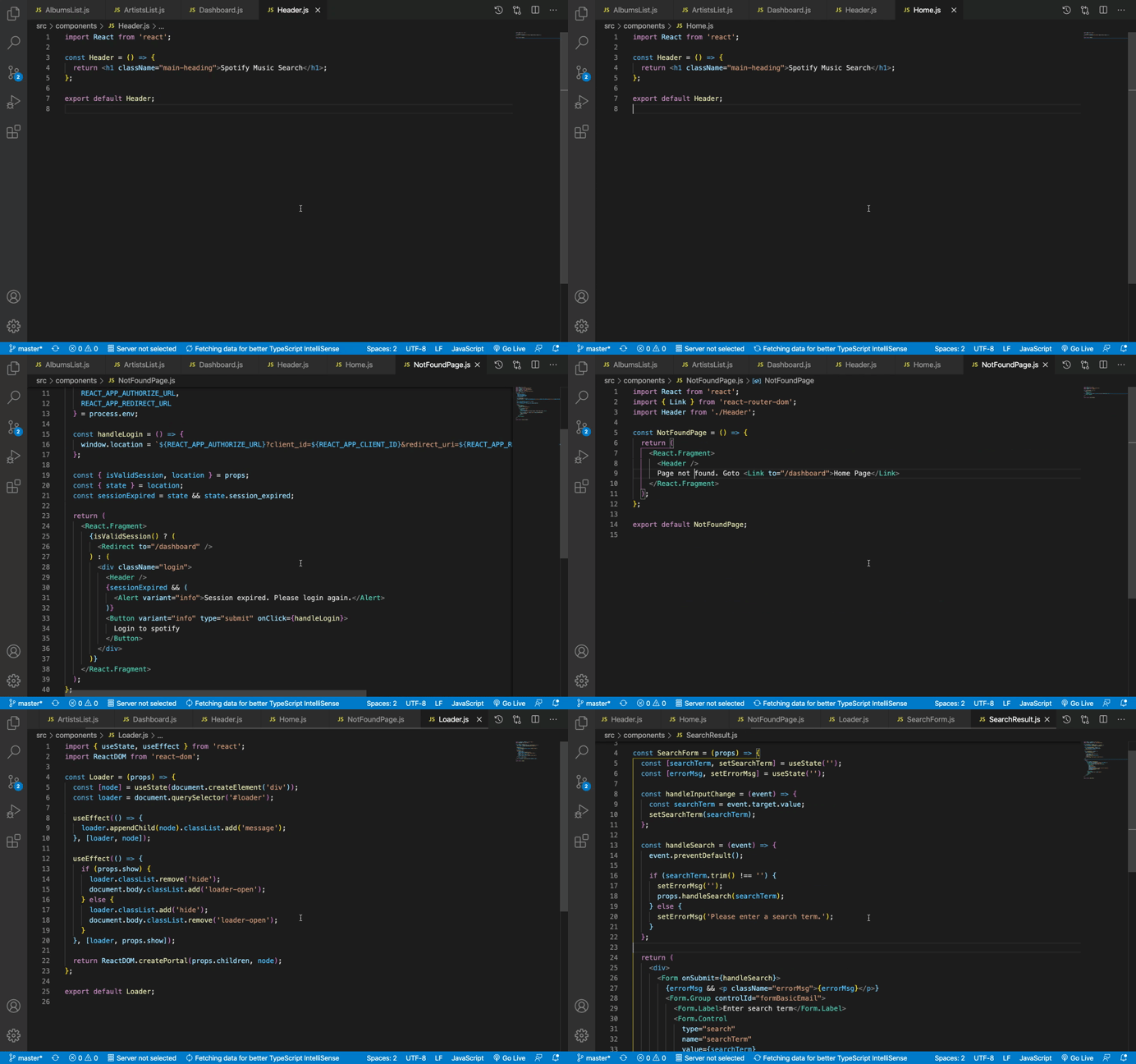
`Cmd` + `Shift` + `T` : Re-open closed tab
### On Windows
`Ctrl` + `Shift` + `T` : Re-open closed tab
## 13. Quickly Get A List of Declarations And Functions In a File
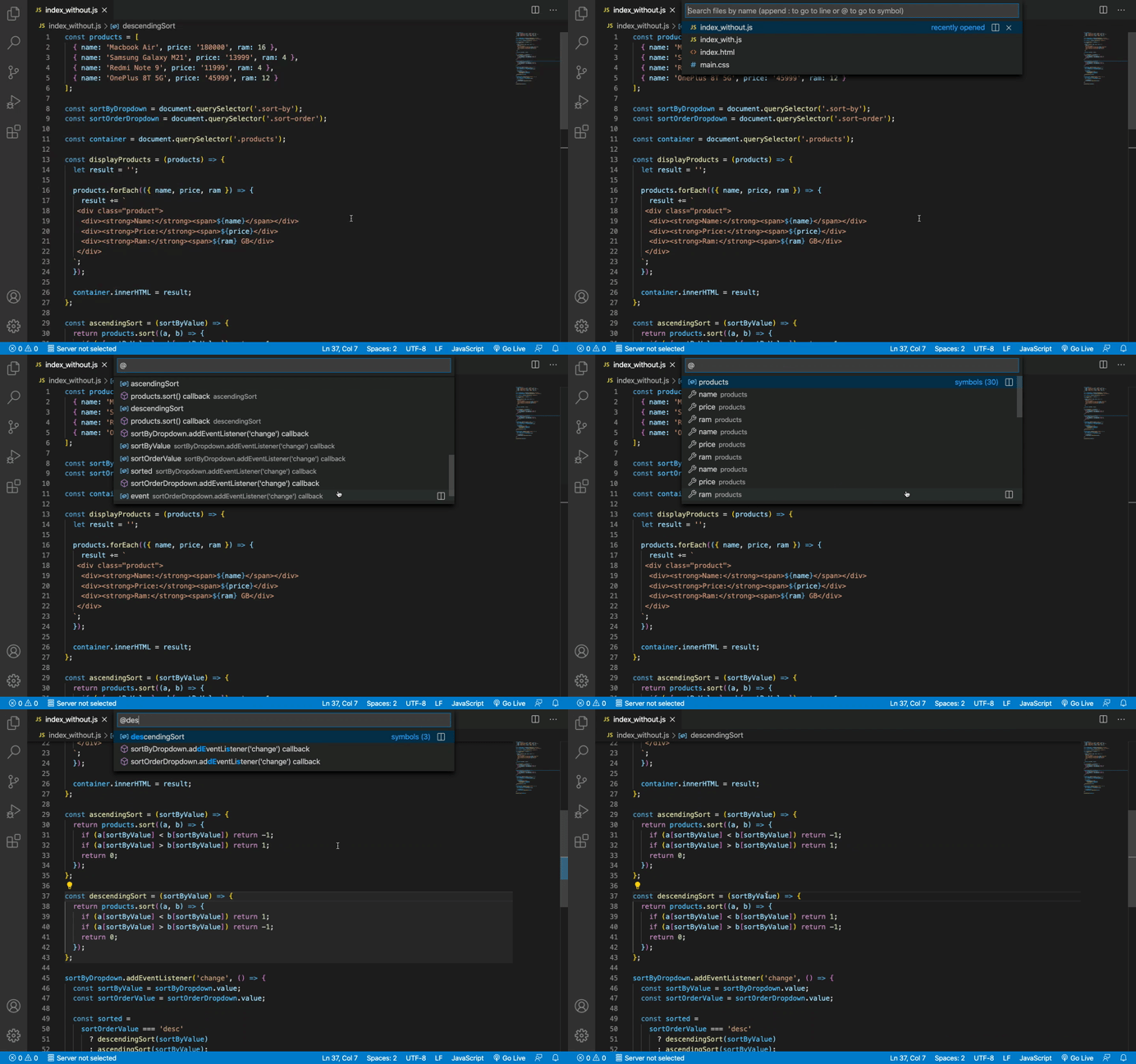
This shortcut is the same for Windows and Mac and is really useful to find any function or declaration when the file contents are larger.
Just press `Ctrl` + `G` and remove the `:` and type @ and you will see the list of declarations and functions.
Then you can either type for quickly find the thing you want to navigate through the list using arrow keys.
## 14. Find All Keyboard Shortcuts
In addition to the above shortcuts, VS Code has a lot of other shortcuts which you can see by following the below steps:
- Press `Ctrl` + `Shift` + `P` (Windows) or `Cmd` + `Shift` + `P` (Mac)
- Search for the `shortcut` text
- Select the menu `Preferences: Open Keyboard Shortcuts`
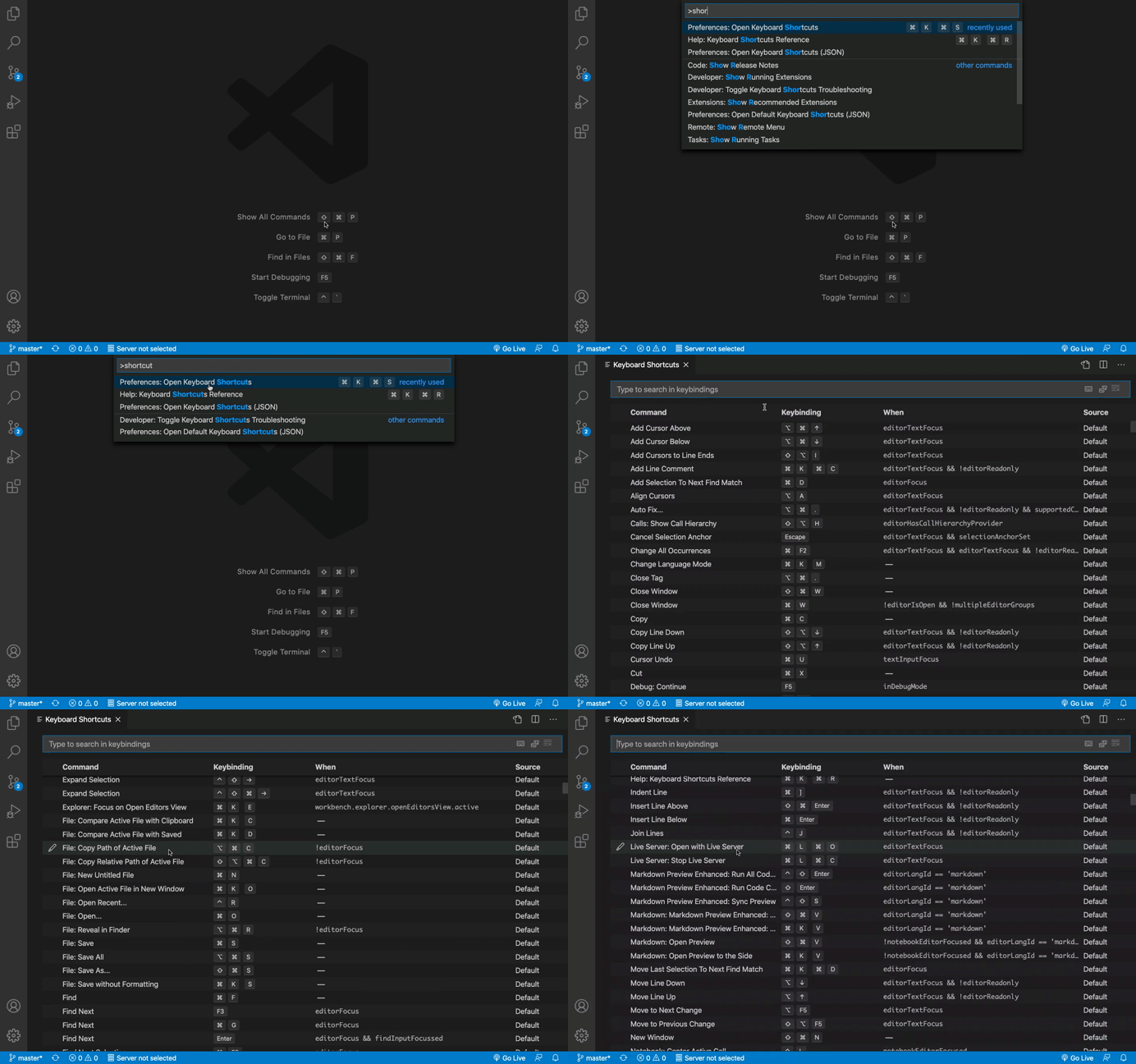
Here, you can see a list of all the available shortcuts and also edit the key binding for any of the shortcuts.
### Thanks for reading!
Check out my recently published [Mastering Redux](https://master-redux.yogeshchavan.dev/) course.
In this course, you will build 3 apps along with a food ordering app and you'll learn:
* Basic and advanced Redux
* How to manage the complex state of array and objects
* How to use multiple reducers to manage complex redux state
* How to debug Redux application
* How to use Redux in React using react-redux library to make your app reactive.
* How to use redux-thunk library to handle async API calls and much more
and then finally we'll build a complete [food ordering app](https://www.youtube.com/watch?v=2zaPDfCKAvM) from scratch with stripe integration for accepting payments and deploy it to the production.
[ ](https://bit.ly/3w0DGum)
**Want to stay up to date with regular content regarding JavaScript, React, Node.js? [Follow me on LinkedIn](https://www.linkedin.com/in/yogesh-chavan97/).**
[
](https://bit.ly/3w0DGum)
**Want to stay up to date with regular content regarding JavaScript, React, Node.js? [Follow me on LinkedIn](https://www.linkedin.com/in/yogesh-chavan97/).**
[ ](https://www.buymeacoffee.com/myogeshchavan97)