# A complete guide for testing in React using Jest along with code coverage report
Writing test cases is an important part of React development. Each component should have a test case written _correctly_ so by just running a single command we can make sure that our entire application works correctly no matter how big the application is.
So if some API call is failing because the server is down or there is some issue processing request we can easily catch it before the application is deployed to production by just running a single command.
Therefore writing unit tests in React is very important and every React developer should know how to write the test cases.
In this article, we will explore all of that.
So let’s get started
To start with, clone the todo list repository code from [HERE](https://github.com/myogeshchavan97/todo_list_with_localstorage) which is created to demonstrate localStorage in [this article](https://medium.com/javascript-in-plain-english/everything-you-need-to-know-about-html5-local-storage-and-session-storage-479c63415c0a?source=friends_link&sk=f429aa5008683a3b0359db43f976efb3)
Once cloned, run the application by executing the following commands:
* npm install
* npm start
Now we will start writing test cases using Jest Framework.
> When using create-react-app, jest is already included so there is no need of installing it separately as in our case.
We will write a simple test case to understand jest and then we will start writing test cases for the todo app.
Create a new folder named **tests** inside `src` folder and add a simple test file with the name `app.test.js` with following code:
```js
// app.test.js
const add = (a, b) => a + b;
test('should add two numbers', () => {
const sum = add(3, 4);
expect(sum).toBe(7);
});
```
**Note: Every test file should end with `.test.js` extension. This is how jest is able to find all the test files to be executed.**
Let’s understand the above code.
Here we are testing `add` function which takes two numbers and returns the sum of those numbers. Jest provides some global functions one of them is `test`function inside which we write our test case.
You can find a complete list of global functions [HERE](https://jestjs.io/docs/en/api)
The `test` function takes two arguments.
1. the string which describes what we are testing
2. the function where we write our test case_
Inside the `test` function, we are calling the `add` method by passing two numbers and then checking if the sum of 3 and 4 equals 7.
To run this file, open the command line or terminal and execute the following command
```
npm run test
```
Once executed, you will see that our test case is passed
Now change the `expect` statement from
```
expect(sum).toBe(7);
```
to
```
expect(sum).toBe(8);
```
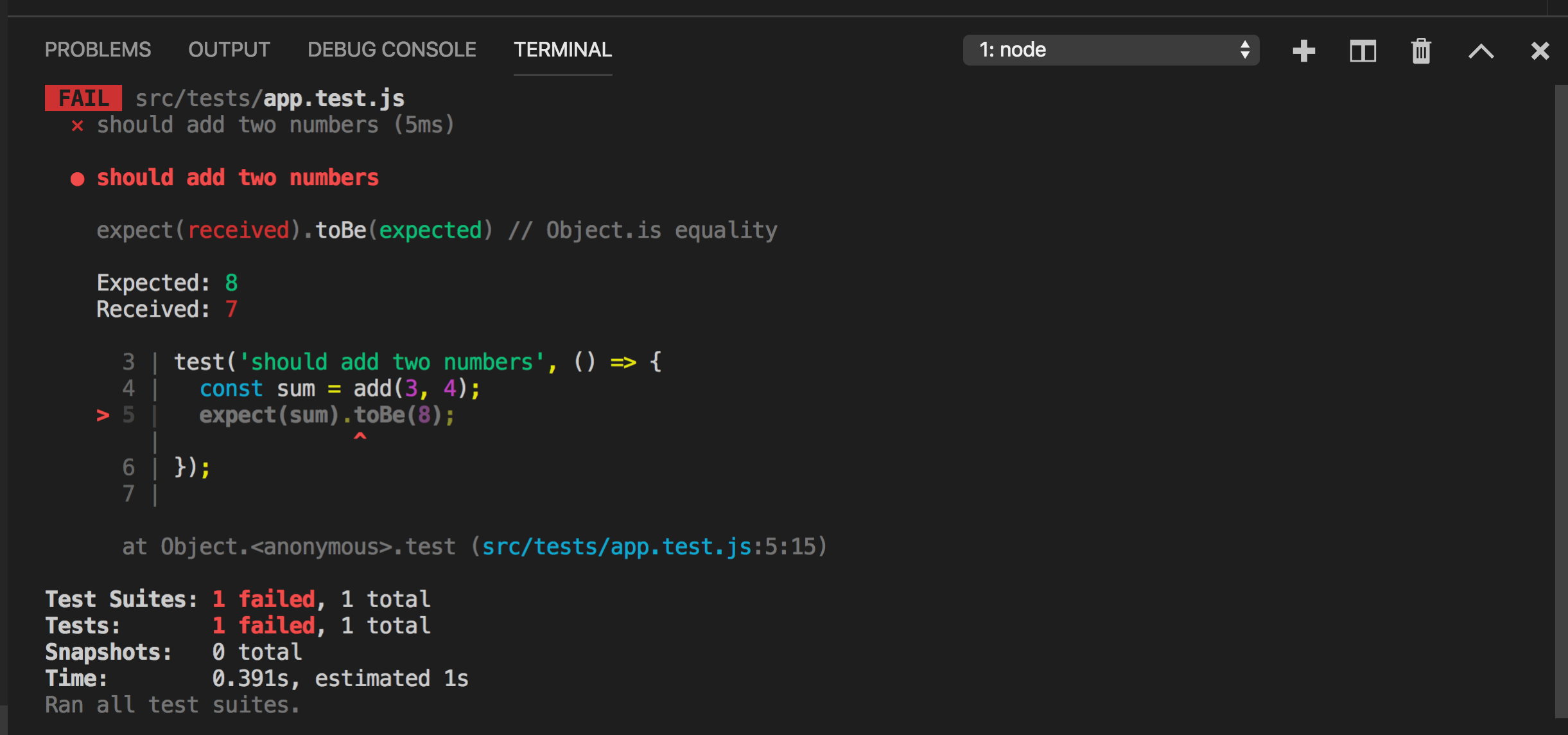
and you will immediately see that the test case has failed because `3 + 4` is definitely not `8` and you will see the filename along with the line number where it fails. That’s how easy to test and debug with jest.
`toBe` is one of the many methods provided by Jest for testing. You can find the complete list [HERE](https://jestjs.io/docs/en/expect)
Change the `toBe` value from `8` to `7` to make it work again.
**Now, let’s start testing our todo list app. To do that we need to install the enzyme library and make some configuration changes.**
To easily test components and handle the event handlers, manage state, etc, Enzyme library is used together with Jest.
Install enzyme and it’s dependencies using
```
npm install --save-dev enzyme@3.11.0 enzyme-adapter-react-16@1.15.2 jest-enzyme@7.1.2
```
If you are using react less than version 16, you need to install its compatible version of the adapter as shown [HERE](https://airbnb.io/enzyme/#installation)
To use Enzyme with Jest, create a new file `setupTests.js` inside the `src` folder and add the following content
```js
import { configure } from 'enzyme';
import Adapter from 'enzyme-adapter-react-16';
import 'jest-enzyme';
configure({ adapter: new Adapter() });
```
To connect it with Jest create a file with the name `jest.config.json` in the root of the project where `package.json` file is present and add the following content
```
{
"setupFiles": ["/src/setupTests.js"]
}
```
Now we are done with the configuration, let’s start testing the `Header` component from `src/components` directory.
## Snapshot Testing
> Snapshot testing is a way to test react components where we create a snapshot of the component by passing the props if any.
It’s usual practice to create the same folder structure for test files as components inside the `src` folder so create `components` folder inside `src/tests` folder and create a new file `Header.test.js` inside it and add the following code
```js
import React from 'react';
import { shallow } from 'enzyme';
import Header from '../../components/Header';
test('should test Header component', () => {
const wrapper = shallow();
expect(wrapper).toMatchSnapshot();
});
```
Here, we are using shallow rendering to create a snapshot of the `Header` component.
Now, if you run the tests again using
```
npm run test
```
you will see that all tests passed and a new folder with the name `__snapshots__`is created inside `components` which has the `Header` component snapshot saved to the file
Now open the `src/components/Header.js` file and change something in the file like adding an exclamation mark in h1
```js
const Header = () => {
return
Todo List App!
;
};
export default Header;
```
Now, if you save the file, you will see an error as shown below
The error clearly tells us that, the new snapshot with the exclamation mark does not match the original snapshot saved in `Header.test.js.snap`.
Here we have two choices
1. Keep the change we did in `Header.js` (added exclamation mark)
2. Discard the change in `Header.js`
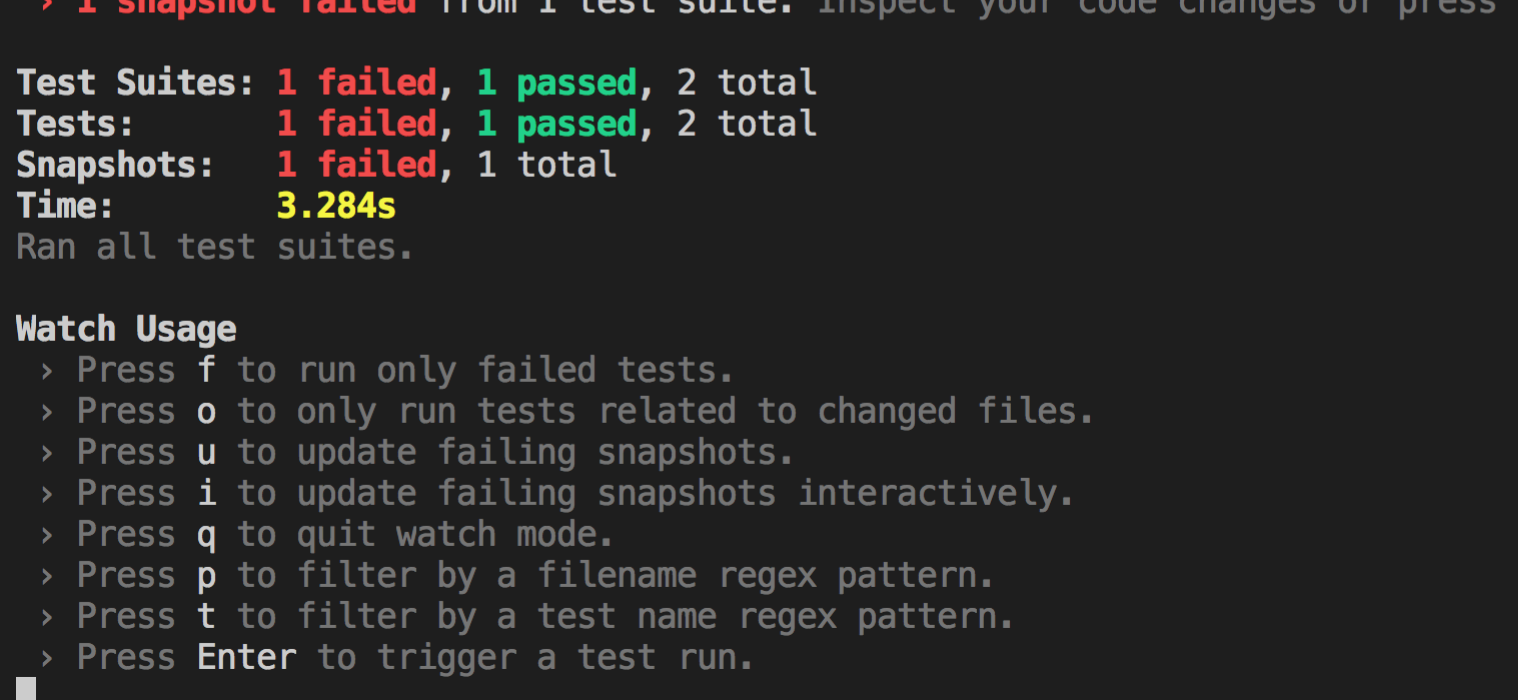
So if you press `w` key in the terminal you will see more options
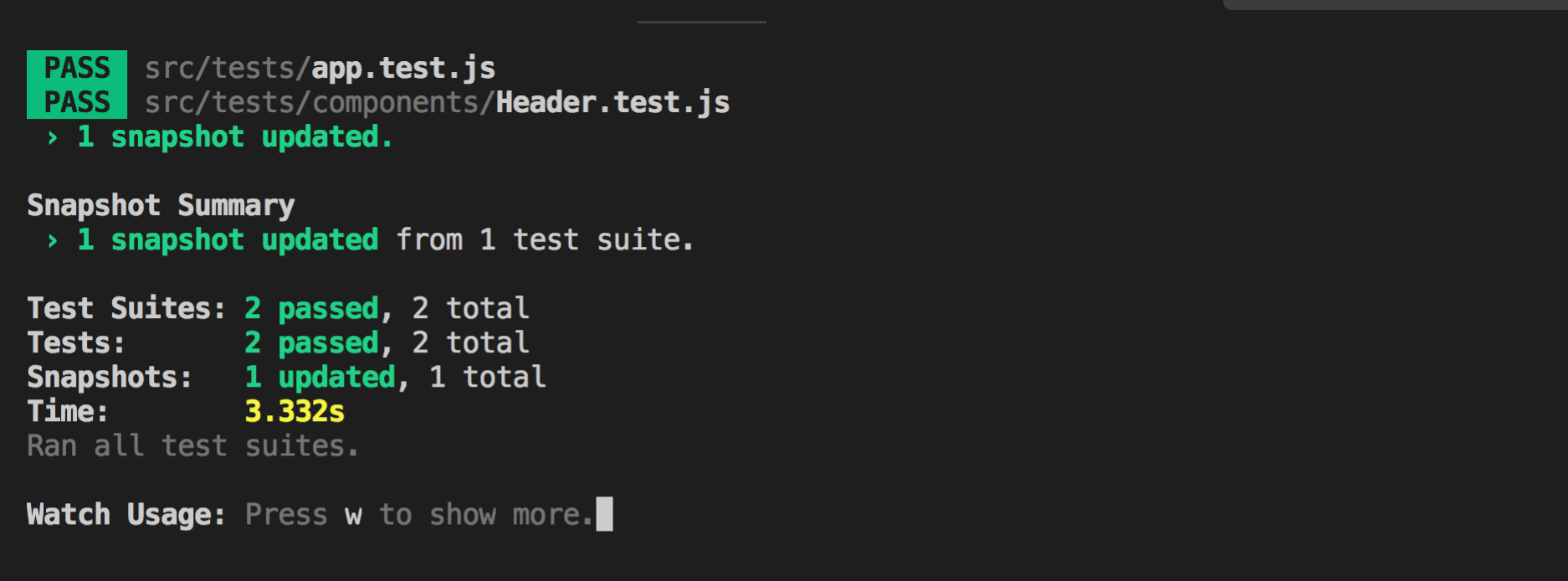
If we want the change in `Header.js`, press `u` key and the snapshot will be updated with our changes in `Header.js` file and you will see the updated snapshot message
If you don’t want the exclamation mark in the `Header.js`, remove it from the file, and then save the file which will re-run the tests and will keep the old snapshot without the exclamation mark.
So using snapshot testing we can easily test our React components and track if something changes in any of the files may be by mistake or by purpose.
Now, let’s write test cases for `src/components/TodoLists.js` component.
Create a new file `TodoLists.test.js` inside `src/tests/components` folder
The `TodoLists.js` component accepts prop which is an array of todos, So let’s write a test case which takes an array as props
```js
import React from 'react';
import { shallow } from 'enzyme';
import TodoLists from '../../components/TodoLists';
test('should test TodoLists component with default state of empty array', () => {
const wrapper = shallow();
expect(wrapper).toMatchSnapshot();
});
```
If your _npm run test_ command is still running, you can see a new snapshot is created into `__snapshots__` folder
So you can see that the empty array check from `TodoLists.js` is correctly getting executed.
Now, we will write another test case by adding some todos
```js
test('should test TodoLists component with list of todos', () => {
const wrapper = shallow(
);
expect(wrapper).toMatchSnapshot();
});
```
As you can see the snapshot is updated with the new test case data
Now we have handled both the conditions from `TodoLists.js`
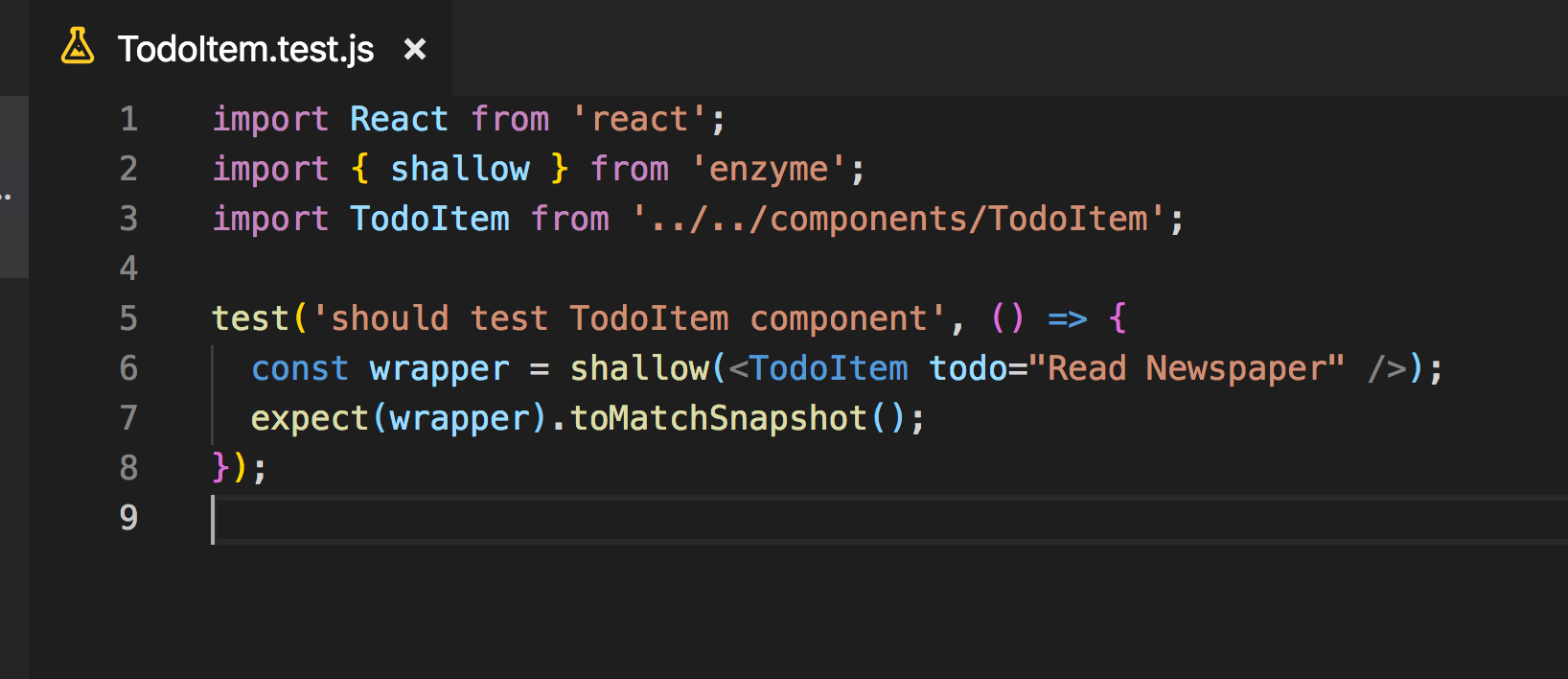
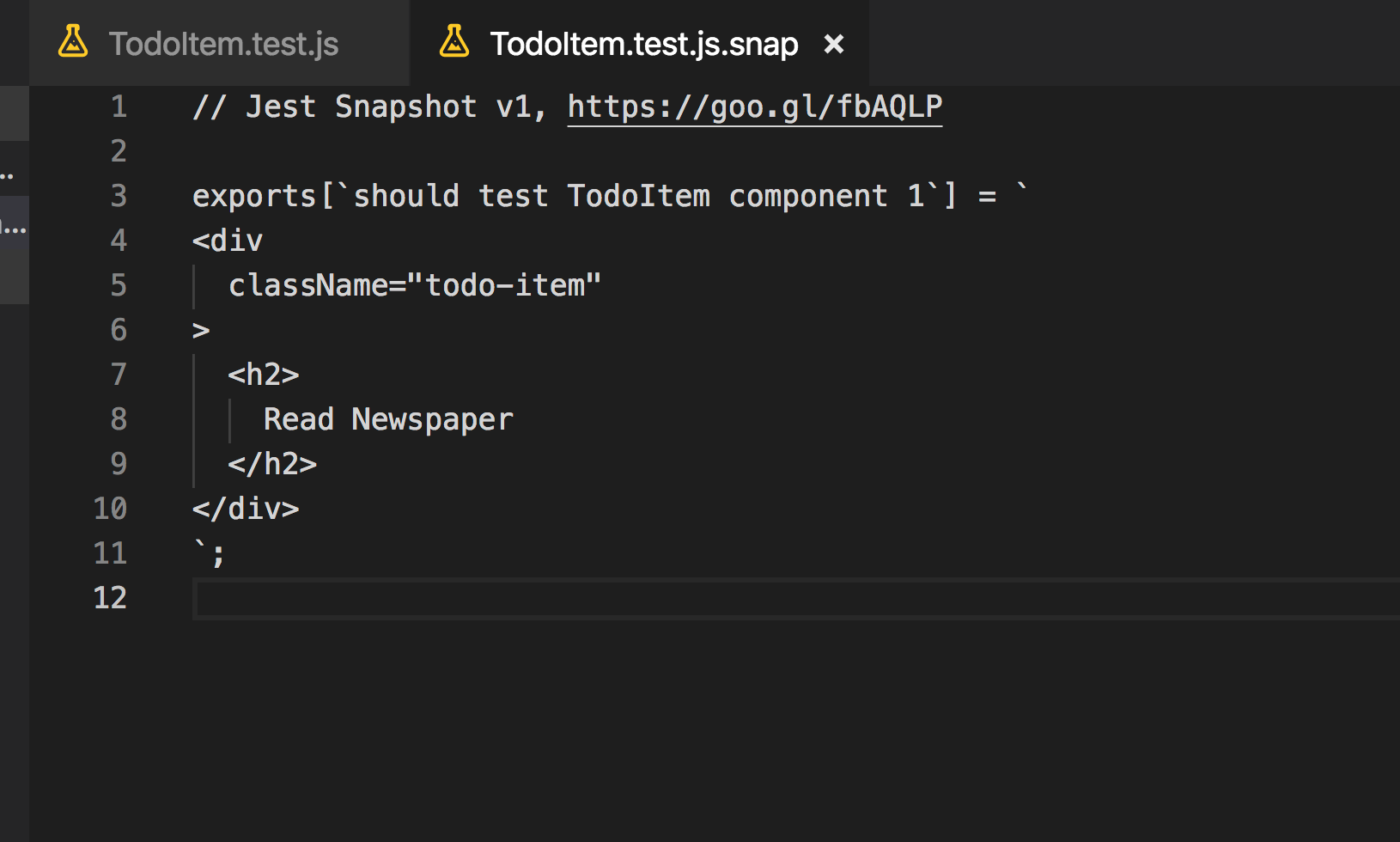
Let’s move on to the next component which is `TodoItem.js` component
It accepts a single todo as a prop
Create a new file `TodoItem.test.js` inside `src/tests/components` folder and add the following code inside it.
Let’s start with testing `AddTodo.js` component now
Create a new file `AddTodo.test.js` inside `src/tests/components` folder
`AddTodo` component accepts a `handleAddTodo` method as a prop
Let’s test `AddTodo` component by not passing any props
when you run `npm run test` you will see a new snapshot file created for this
Now let’s add another test case to handle the `onSubmit` method call
When we submit the form, `handleAddTodo` method is called so we will be creating a spy in jest to test that function call.
**Creating a spy is a way of creating a function and checking if the written method gets called or not.**
To create a spy for function in Jest, we use `jest.fn` method provided by Jest and we will pass it as the `handleAddTodo` prop
Then we will find the Form element and we will trigger the onSubmit handler.
It’s always good to save the snapshot before, so it will be easy to identify what is the final element we need to use in `.find` method.
we will use the simulate method of the enzyme by mentioning which event to trigger.
Once the submit event is triggered, we will verify if it’s actually triggered or not by calling `toHaveBeenCalled` method of Jest
You can find all other methods provided by enzyme [HERE](https://airbnb.io/enzyme/docs/api/ShallowWrapper/find.html)
If you run the tests, you can see that a new snapshot is saved and our test runs successfully.
Feel free to open the `AddTodo.test.js.snap` file and understand what gets stored when we create a new snapshot for this component which is a very important part of writing test cases.
Now we will add tests for the final component which is `TodoList.js`
Create a new file `TodoList.test.js` inside `src/tests/components` folder
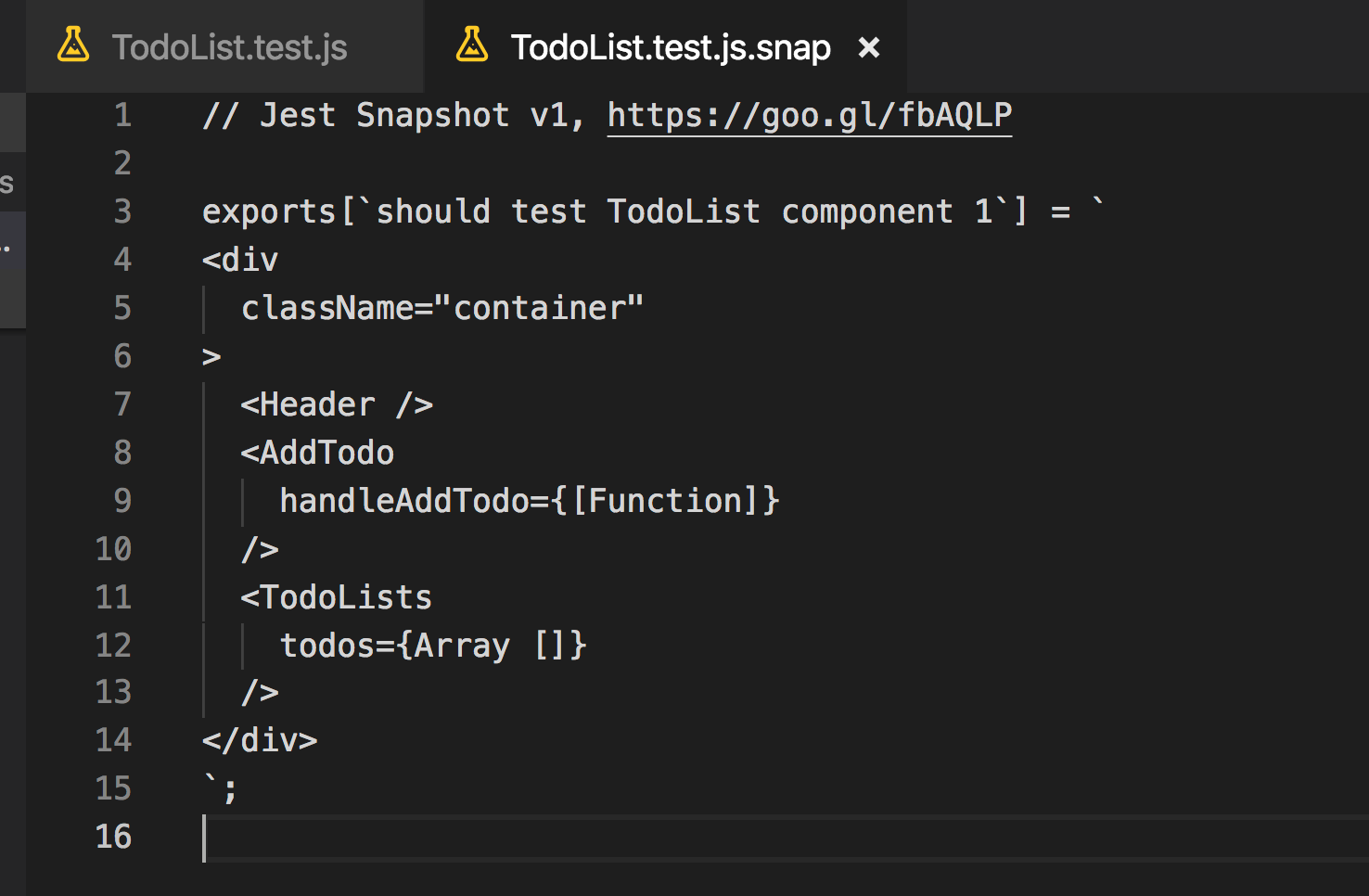
Its snapshot will look like this
Now, we are done with all component test cases. Let’s explore how to see the total code coverage for the entire application.
For this, we will need to make some configuration changes.
Open `jest.config.json` and add the following content:
```
{
"setupFiles": ["/src/setupTests.js"],
"testRegex": "/*.test.js$",
"collectCoverage": true,
"coverageReporters": ["lcov"],
"coverageDirectory": "test-coverage",
"coverageThreshold": {
"global": {
"branches": 0,
"functions": 0,
"lines": 0,
"statements": 0
}
},
"moduleDirectories": ["node_modules", "src"]
}
```
Here we are telling jest to generate coverage reports for all files ending with .test.js as shown in _testRegex_ property.
Now to generate coverage report, execute the following command from the terminal
```
npm run test -- --coverage --watchAll=false
```
Once executed, we will see the total coverage for each test file
**This will also create a new coverage folder in the project**
If you open the index.html file in the browser located at `coverage/lcov-report` folder you will be able to view the report
As you can see, we have covered all the scenarios for each of the components except `TodoList.js` for which it’s showing only `29.41%` statements covered.
Let’s open the T`odoList.js` and we can see what extra test cases we need to handle
As you can see, the lifecycle methods and `handleAddTodo` method is not handled in our test cases so let’s add the test cases for them
Open `TodoList.test.js` from `src/tests/components` folder and add the following test case in it.
```js
test('should call handleAddTodo method', () => {
const wrapper = shallow();
const instance = wrapper.instance();
const value = 'Publish Article';
instance.handleAddTodo({
preventDefault: () => {},
target: {
todo: {
value
}
}
});
});
```
Here we are manually calling the `handleAddTodo` using `instance.handleAddTodo` method. The `handleAddTodo` is expecting an event object as a parameter which has `preventDefault` method and value property so we are providing it as a parameter
Now run the coverage command again
```
npm run test -- --coverage --watchAll=false
```
and you will see the coverage percent has increased for `TodoList.js`
If you open the `TodoList.js` file, you will see that `handleAddTodo` method is covered but the `componentDidMount` is still not covered by test cases because of which the percentage is `88.24%` and not `100%`
I will leave it to you to add the test case for it as an exercise for you.
_Hint: you can use the_ `_mount_` _method of the enzyme to handle that test case_
**A couple of improvements:**
If you open the `TodoList.test.js` file, you can see that we have duplicate code of _const wrapper = shallow();_
It’s repeated in the first and second test case.
If we add more test cases it will be repeated again. So jest provides some life cycle methods using which we can remove the duplicate code.
**Life cycle methods:**
1. afterAll: It will be executed after all the test cases from the test file are finished executing
2. beforeAll: It will be executed before executing any of the test cases in a file
3. afterEach: It will be executed after each of the test cases in a file
4. beforeEach: It will be executed before each of the test cases in a file_
Complete List: [https://jestjs.io/docs/en/api](https://jestjs.io/docs/en/api)
we will use the `beforeAll` life cycle method to fix the duplicate code
That looks much better now.
**You can find complete source code for this application [here](https://github.com/myogeshchavan97/todolist_react_tests).**
That’s it for today. Hope you learned something new today.
I hope you've been enjoying my articles and tutorials I've been writing. If you found them useful, consider buying me a coffee! I would really appreciate it.
[](https://www.buymeacoffee.com/myogeshchavan97)
**Don’t forget to subscribe to get my weekly newsletter with amazing tips, tricks, and articles directly in your inbox [here](https://yogeshchavan.dev).**
 Now change the `expect` statement from
```
expect(sum).toBe(7);
```
to
```
expect(sum).toBe(8);
```
and you will immediately see that the test case has failed because `3 + 4` is definitely not `8` and you will see the filename along with the line number where it fails. That’s how easy to test and debug with jest.
Now change the `expect` statement from
```
expect(sum).toBe(7);
```
to
```
expect(sum).toBe(8);
```
and you will immediately see that the test case has failed because `3 + 4` is definitely not `8` and you will see the filename along with the line number where it fails. That’s how easy to test and debug with jest.
 `toBe` is one of the many methods provided by Jest for testing. You can find the complete list [HERE](https://jestjs.io/docs/en/expect)
Change the `toBe` value from `8` to `7` to make it work again.
**Now, let’s start testing our todo list app. To do that we need to install the enzyme library and make some configuration changes.**
To easily test components and handle the event handlers, manage state, etc, Enzyme library is used together with Jest.
Install enzyme and it’s dependencies using
```
npm install --save-dev enzyme@3.11.0 enzyme-adapter-react-16@1.15.2 jest-enzyme@7.1.2
```
If you are using react less than version 16, you need to install its compatible version of the adapter as shown [HERE](https://airbnb.io/enzyme/#installation)
To use Enzyme with Jest, create a new file `setupTests.js` inside the `src` folder and add the following content
```js
import { configure } from 'enzyme';
import Adapter from 'enzyme-adapter-react-16';
import 'jest-enzyme';
configure({ adapter: new Adapter() });
```
To connect it with Jest create a file with the name `jest.config.json` in the root of the project where `package.json` file is present and add the following content
```
{
"setupFiles": ["
`toBe` is one of the many methods provided by Jest for testing. You can find the complete list [HERE](https://jestjs.io/docs/en/expect)
Change the `toBe` value from `8` to `7` to make it work again.
**Now, let’s start testing our todo list app. To do that we need to install the enzyme library and make some configuration changes.**
To easily test components and handle the event handlers, manage state, etc, Enzyme library is used together with Jest.
Install enzyme and it’s dependencies using
```
npm install --save-dev enzyme@3.11.0 enzyme-adapter-react-16@1.15.2 jest-enzyme@7.1.2
```
If you are using react less than version 16, you need to install its compatible version of the adapter as shown [HERE](https://airbnb.io/enzyme/#installation)
To use Enzyme with Jest, create a new file `setupTests.js` inside the `src` folder and add the following content
```js
import { configure } from 'enzyme';
import Adapter from 'enzyme-adapter-react-16';
import 'jest-enzyme';
configure({ adapter: new Adapter() });
```
To connect it with Jest create a file with the name `jest.config.json` in the root of the project where `package.json` file is present and add the following content
```
{
"setupFiles": ["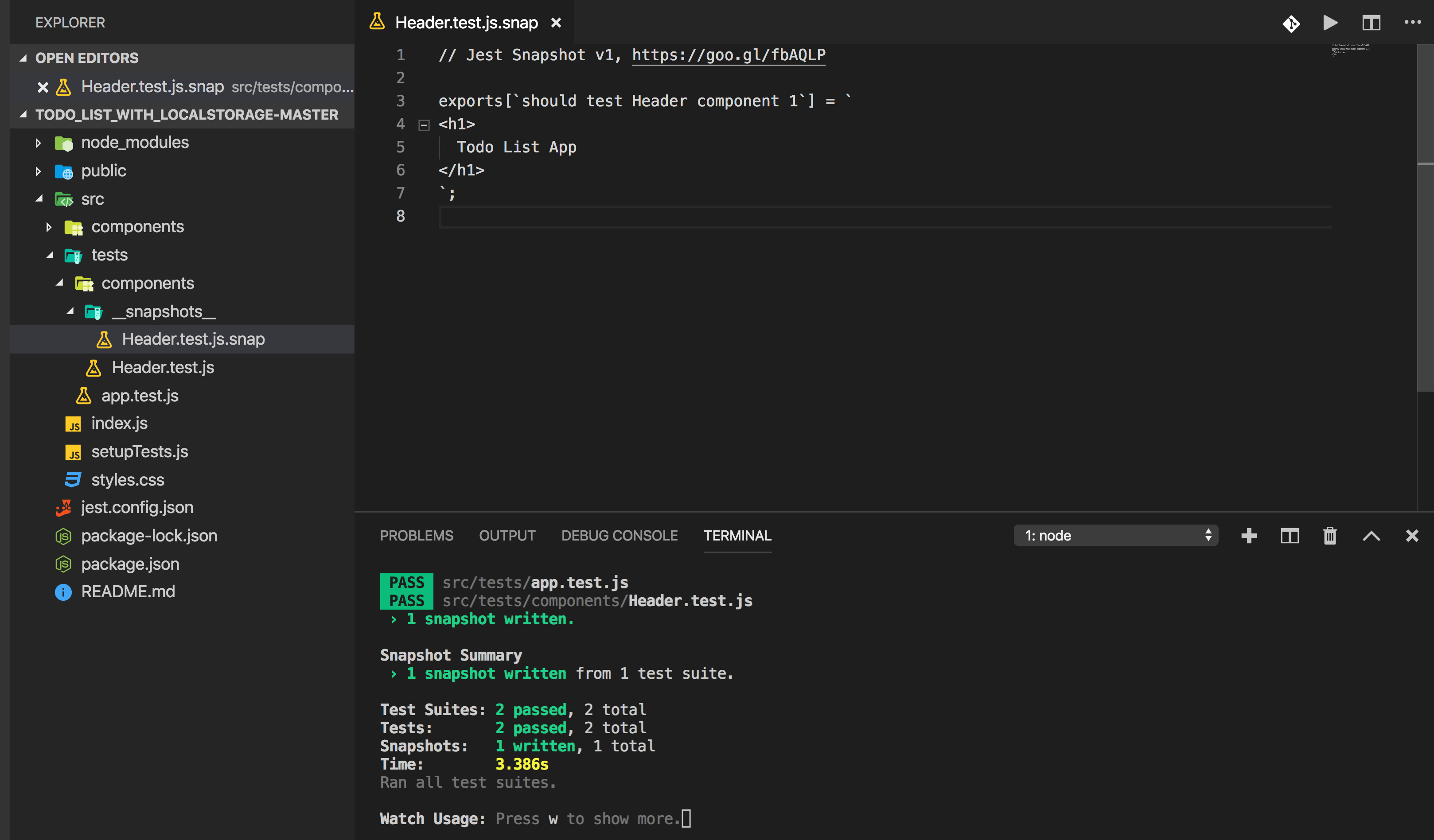 Now open the `src/components/Header.js` file and change something in the file like adding an exclamation mark in h1
```js
const Header = () => {
return
Now open the `src/components/Header.js` file and change something in the file like adding an exclamation mark in h1
```js
const Header = () => {
return  The error clearly tells us that, the new snapshot with the exclamation mark does not match the original snapshot saved in `Header.test.js.snap`.
Here we have two choices
1. Keep the change we did in `Header.js` (added exclamation mark)
2. Discard the change in `Header.js`
So if you press `w` key in the terminal you will see more options
The error clearly tells us that, the new snapshot with the exclamation mark does not match the original snapshot saved in `Header.test.js.snap`.
Here we have two choices
1. Keep the change we did in `Header.js` (added exclamation mark)
2. Discard the change in `Header.js`
So if you press `w` key in the terminal you will see more options
 If we want the change in `Header.js`, press `u` key and the snapshot will be updated with our changes in `Header.js` file and you will see the updated snapshot message
 If you don’t want the exclamation mark in the `Header.js`, remove it from the file, and then save the file which will re-run the tests and will keep the old snapshot without the exclamation mark.
So using snapshot testing we can easily test our React components and track if something changes in any of the files may be by mistake or by purpose.
Now, let’s write test cases for `src/components/TodoLists.js` component.
Create a new file `TodoLists.test.js` inside `src/tests/components` folder
The `TodoLists.js` component accepts prop which is an array of todos, So let’s write a test case which takes an array as props
```js
import React from 'react';
import { shallow } from 'enzyme';
import TodoLists from '../../components/TodoLists';
test('should test TodoLists component with default state of empty array', () => {
const wrapper = shallow(
If you don’t want the exclamation mark in the `Header.js`, remove it from the file, and then save the file which will re-run the tests and will keep the old snapshot without the exclamation mark.
So using snapshot testing we can easily test our React components and track if something changes in any of the files may be by mistake or by purpose.
Now, let’s write test cases for `src/components/TodoLists.js` component.
Create a new file `TodoLists.test.js` inside `src/tests/components` folder
The `TodoLists.js` component accepts prop which is an array of todos, So let’s write a test case which takes an array as props
```js
import React from 'react';
import { shallow } from 'enzyme';
import TodoLists from '../../components/TodoLists';
test('should test TodoLists component with default state of empty array', () => {
const wrapper = shallow(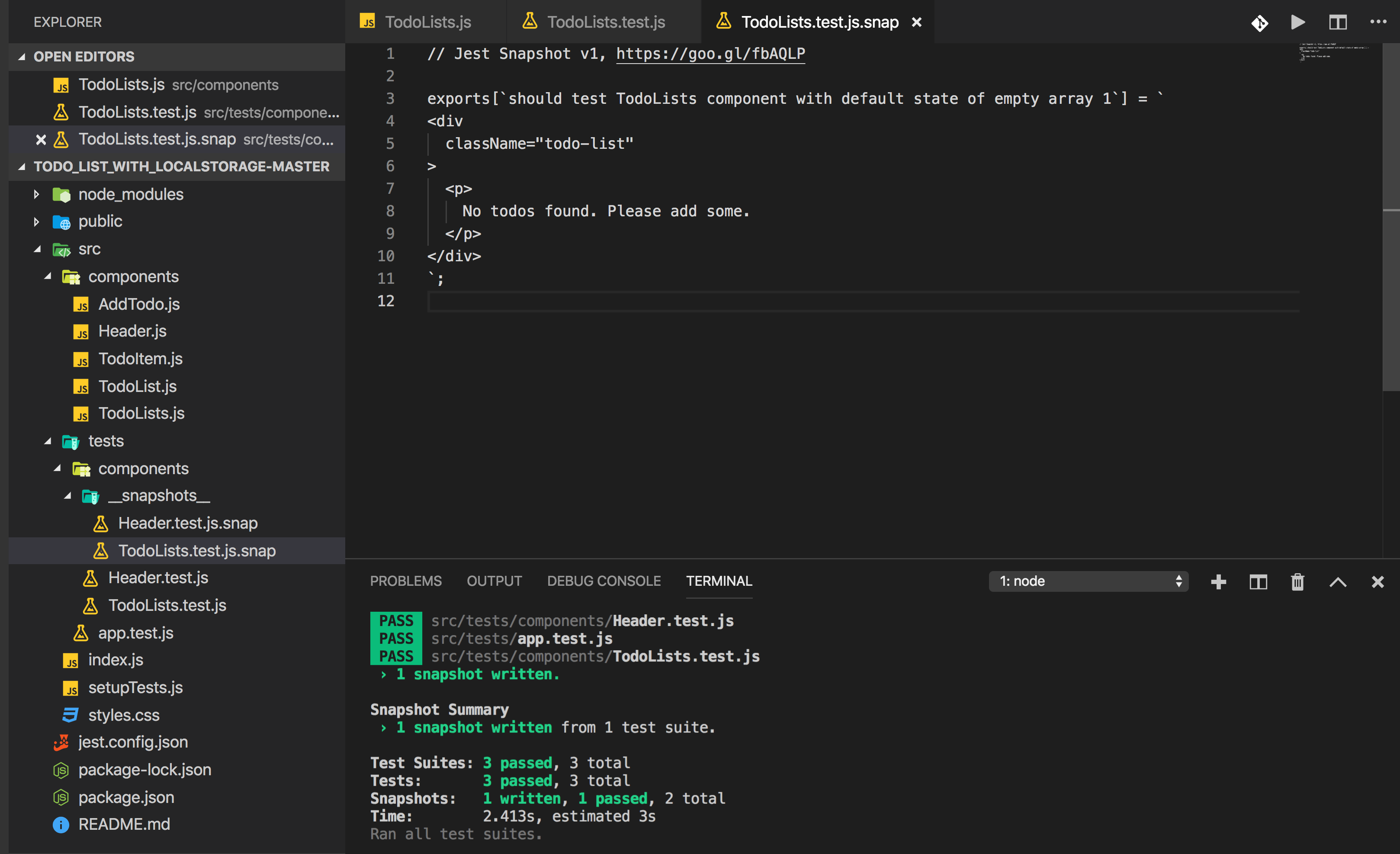 So you can see that the empty array check from `TodoLists.js` is correctly getting executed.
Now, we will write another test case by adding some todos
```js
test('should test TodoLists component with list of todos', () => {
const wrapper = shallow(
So you can see that the empty array check from `TodoLists.js` is correctly getting executed.
Now, we will write another test case by adding some todos
```js
test('should test TodoLists component with list of todos', () => {
const wrapper = shallow(
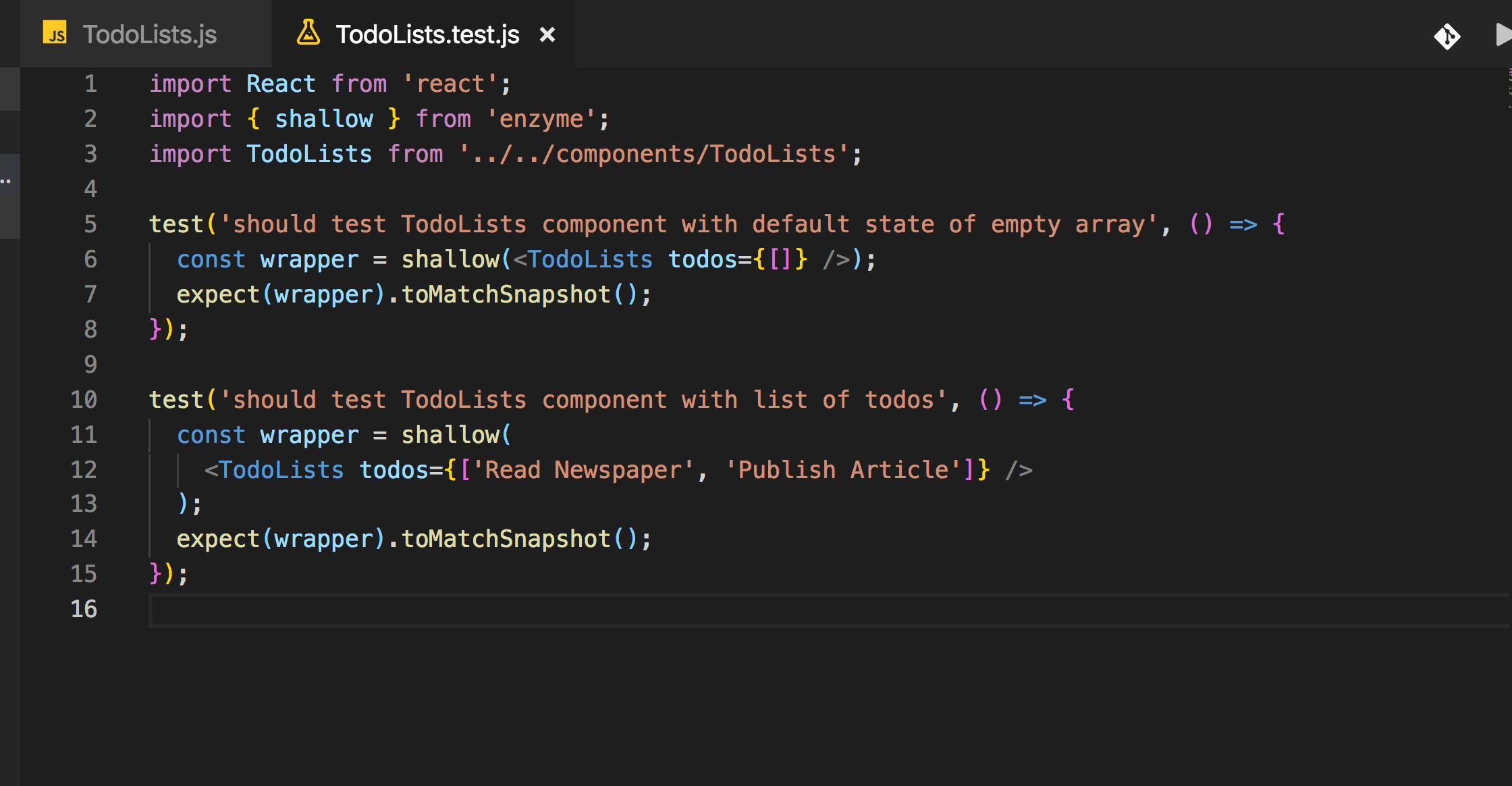 As you can see the snapshot is updated with the new test case data
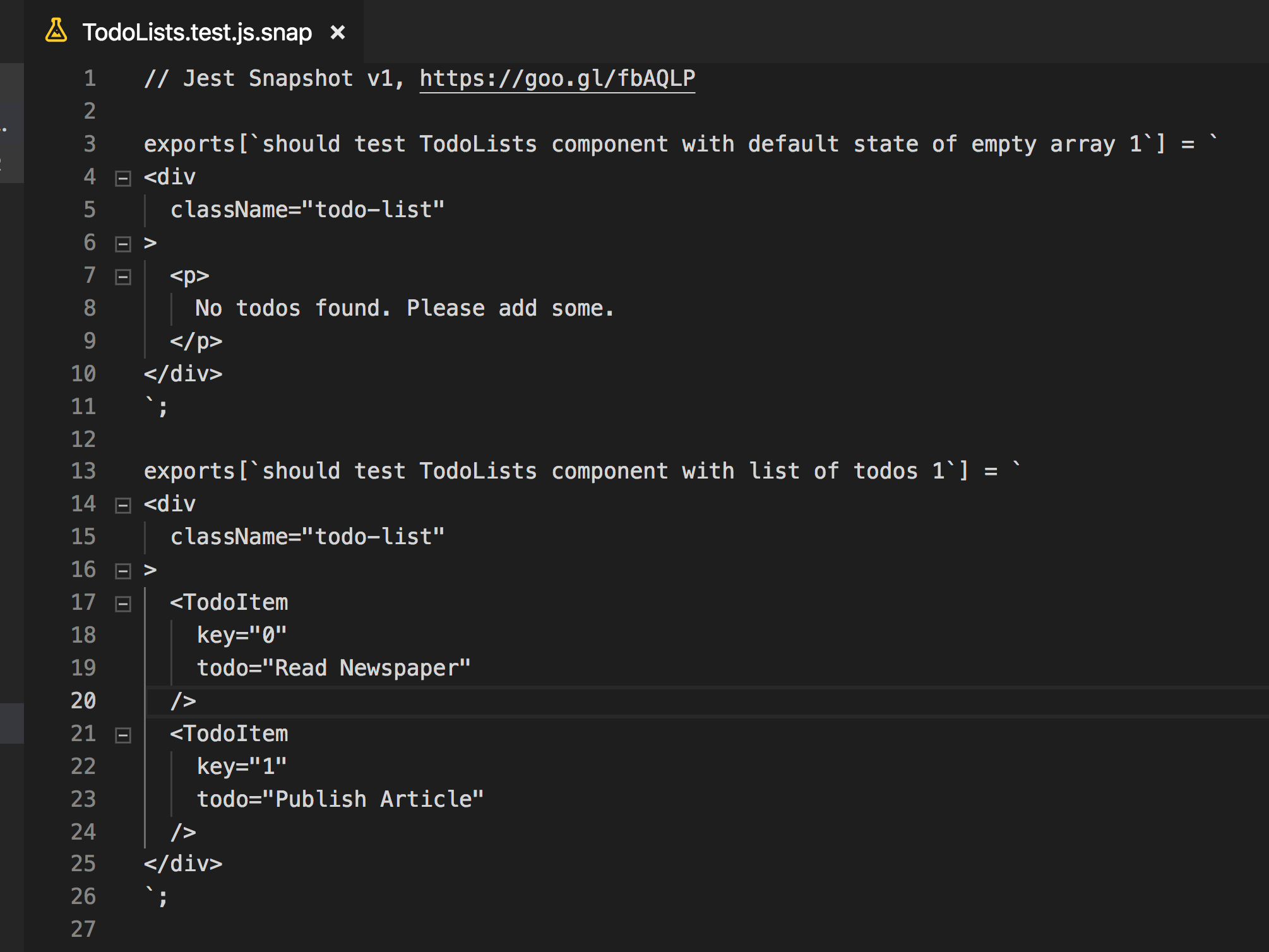 Now we have handled both the conditions from `TodoLists.js`
Let’s move on to the next component which is `TodoItem.js` component
It accepts a single todo as a prop
Create a new file `TodoItem.test.js` inside `src/tests/components` folder and add the following code inside it.
Now we have handled both the conditions from `TodoLists.js`
Let’s move on to the next component which is `TodoItem.js` component
It accepts a single todo as a prop
Create a new file `TodoItem.test.js` inside `src/tests/components` folder and add the following code inside it.
 Let’s start with testing `AddTodo.js` component now
Create a new file `AddTodo.test.js` inside `src/tests/components` folder
`AddTodo` component accepts a `handleAddTodo` method as a prop
Let’s test `AddTodo` component by not passing any props
Let’s start with testing `AddTodo.js` component now
Create a new file `AddTodo.test.js` inside `src/tests/components` folder
`AddTodo` component accepts a `handleAddTodo` method as a prop
Let’s test `AddTodo` component by not passing any props
 when you run `npm run test` you will see a new snapshot file created for this
 Now let’s add another test case to handle the `onSubmit` method call
When we submit the form, `handleAddTodo` method is called so we will be creating a spy in jest to test that function call.
**Creating a spy is a way of creating a function and checking if the written method gets called or not.**
To create a spy for function in Jest, we use `jest.fn` method provided by Jest and we will pass it as the `handleAddTodo` prop
Then we will find the Form element and we will trigger the onSubmit handler.
It’s always good to save the snapshot before, so it will be easy to identify what is the final element we need to use in `.find` method.
we will use the simulate method of the enzyme by mentioning which event to trigger.
Once the submit event is triggered, we will verify if it’s actually triggered or not by calling `toHaveBeenCalled` method of Jest
Now let’s add another test case to handle the `onSubmit` method call
When we submit the form, `handleAddTodo` method is called so we will be creating a spy in jest to test that function call.
**Creating a spy is a way of creating a function and checking if the written method gets called or not.**
To create a spy for function in Jest, we use `jest.fn` method provided by Jest and we will pass it as the `handleAddTodo` prop
Then we will find the Form element and we will trigger the onSubmit handler.
It’s always good to save the snapshot before, so it will be easy to identify what is the final element we need to use in `.find` method.
we will use the simulate method of the enzyme by mentioning which event to trigger.
Once the submit event is triggered, we will verify if it’s actually triggered or not by calling `toHaveBeenCalled` method of Jest
 You can find all other methods provided by enzyme [HERE](https://airbnb.io/enzyme/docs/api/ShallowWrapper/find.html)
If you run the tests, you can see that a new snapshot is saved and our test runs successfully.
You can find all other methods provided by enzyme [HERE](https://airbnb.io/enzyme/docs/api/ShallowWrapper/find.html)
If you run the tests, you can see that a new snapshot is saved and our test runs successfully.
 Feel free to open the `AddTodo.test.js.snap` file and understand what gets stored when we create a new snapshot for this component which is a very important part of writing test cases.
Now we will add tests for the final component which is `TodoList.js`
Create a new file `TodoList.test.js` inside `src/tests/components` folder
Feel free to open the `AddTodo.test.js.snap` file and understand what gets stored when we create a new snapshot for this component which is a very important part of writing test cases.
Now we will add tests for the final component which is `TodoList.js`
Create a new file `TodoList.test.js` inside `src/tests/components` folder
 Its snapshot will look like this
 Now, we are done with all component test cases. Let’s explore how to see the total code coverage for the entire application.
For this, we will need to make some configuration changes.
Open `jest.config.json` and add the following content:
```
{
"setupFiles": ["
Now, we are done with all component test cases. Let’s explore how to see the total code coverage for the entire application.
For this, we will need to make some configuration changes.
Open `jest.config.json` and add the following content:
```
{
"setupFiles": ["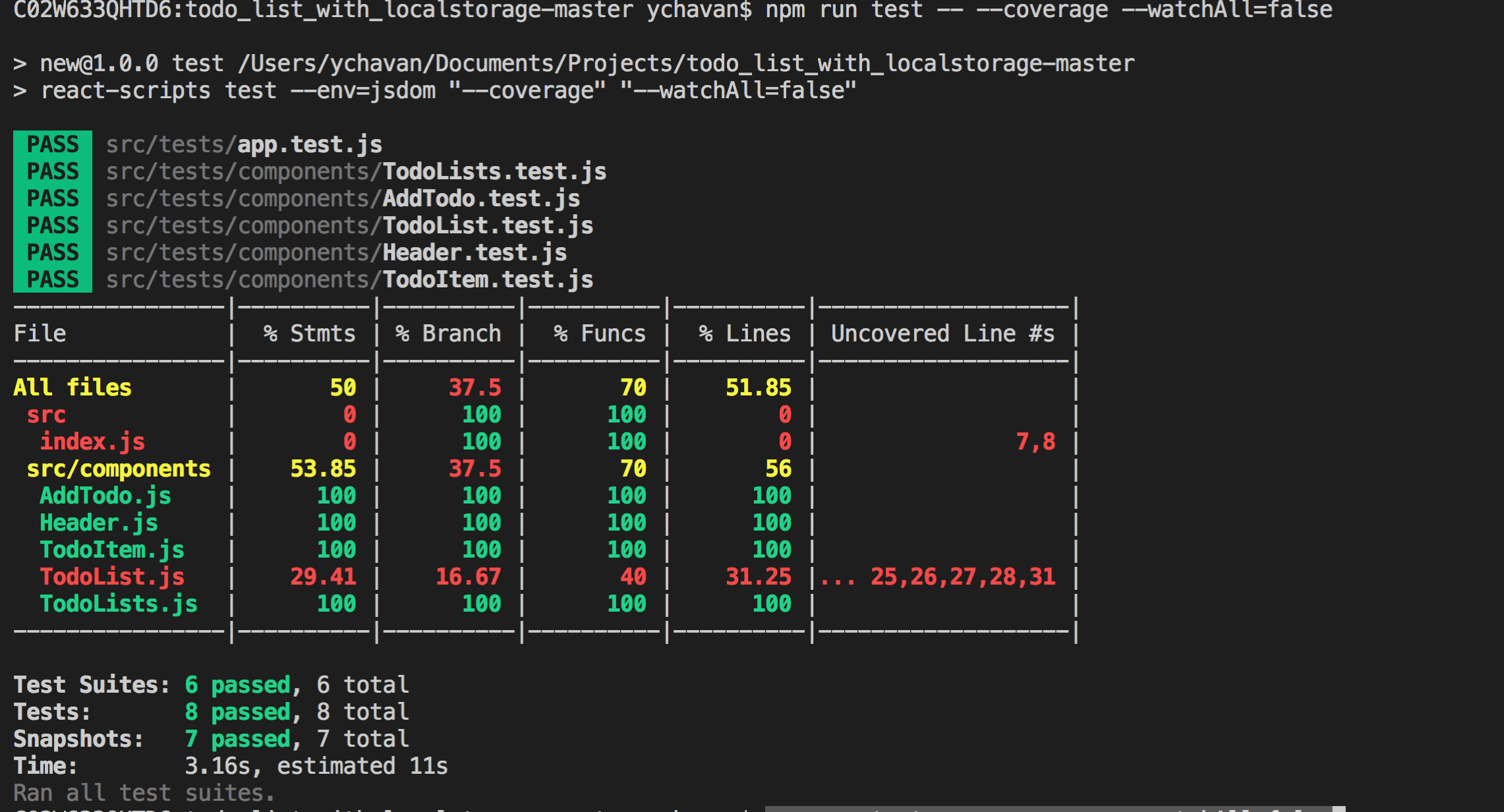 **This will also create a new coverage folder in the project**
If you open the index.html file in the browser located at `coverage/lcov-report` folder you will be able to view the report
**This will also create a new coverage folder in the project**
If you open the index.html file in the browser located at `coverage/lcov-report` folder you will be able to view the report
 As you can see, we have covered all the scenarios for each of the components except `TodoList.js` for which it’s showing only `29.41%` statements covered.
Let’s open the T`odoList.js` and we can see what extra test cases we need to handle
As you can see, we have covered all the scenarios for each of the components except `TodoList.js` for which it’s showing only `29.41%` statements covered.
Let’s open the T`odoList.js` and we can see what extra test cases we need to handle
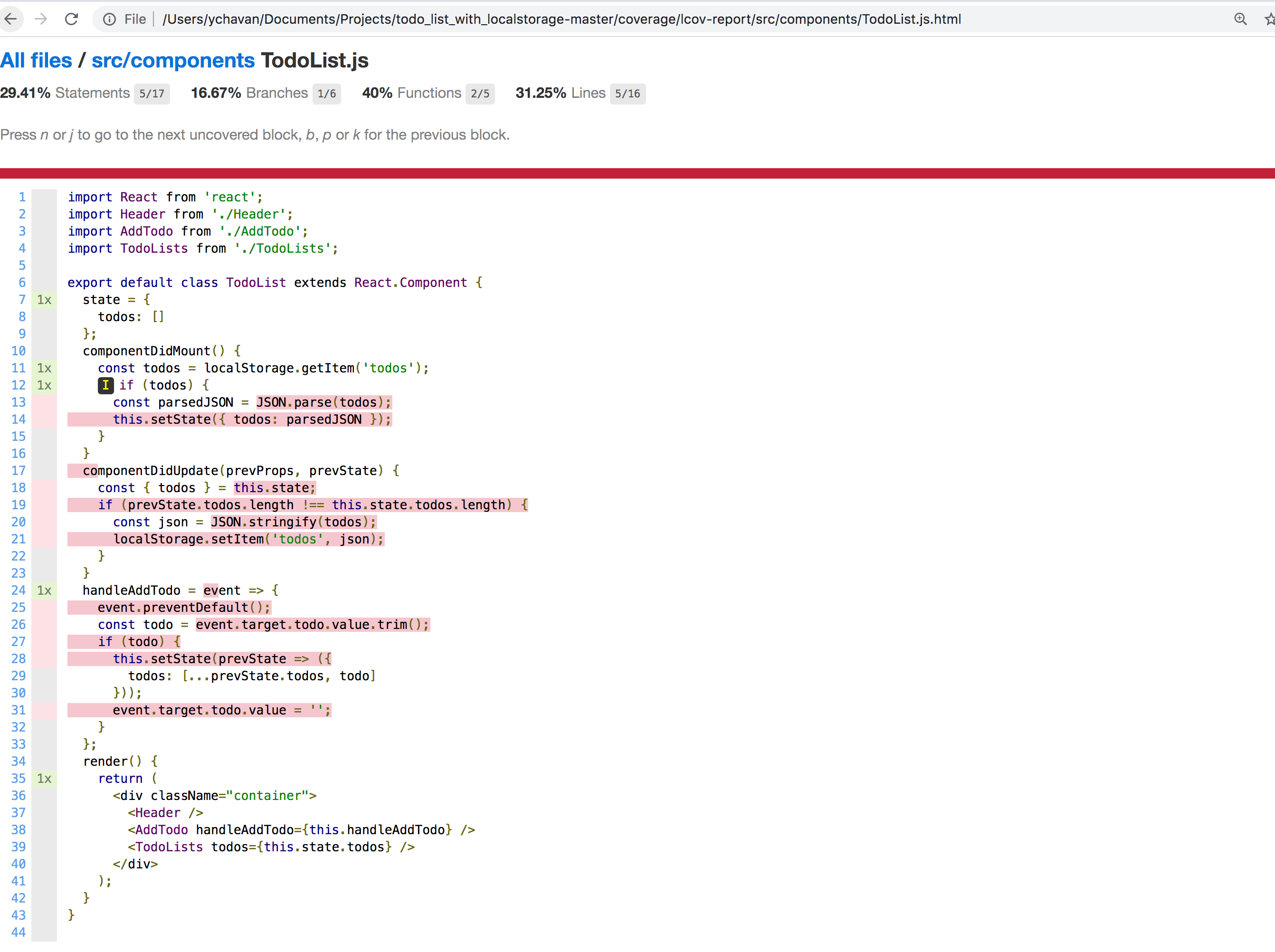 As you can see, the lifecycle methods and `handleAddTodo` method is not handled in our test cases so let’s add the test cases for them
Open `TodoList.test.js` from `src/tests/components` folder and add the following test case in it.
```js
test('should call handleAddTodo method', () => {
const wrapper = shallow(
As you can see, the lifecycle methods and `handleAddTodo` method is not handled in our test cases so let’s add the test cases for them
Open `TodoList.test.js` from `src/tests/components` folder and add the following test case in it.
```js
test('should call handleAddTodo method', () => {
const wrapper = shallow( Now run the coverage command again
```
npm run test -- --coverage --watchAll=false
```
and you will see the coverage percent has increased for `TodoList.js`
Now run the coverage command again
```
npm run test -- --coverage --watchAll=false
```
and you will see the coverage percent has increased for `TodoList.js`
 If you open the `TodoList.js` file, you will see that `handleAddTodo` method is covered but the `componentDidMount` is still not covered by test cases because of which the percentage is `88.24%` and not `100%`
 I will leave it to you to add the test case for it as an exercise for you.
_Hint: you can use the_ `_mount_` _method of the enzyme to handle that test case_
**A couple of improvements:**
If you open the `TodoList.test.js` file, you can see that we have duplicate code of _const wrapper = shallow(
I will leave it to you to add the test case for it as an exercise for you.
_Hint: you can use the_ `_mount_` _method of the enzyme to handle that test case_
**A couple of improvements:**
If you open the `TodoList.test.js` file, you can see that we have duplicate code of _const wrapper = shallow(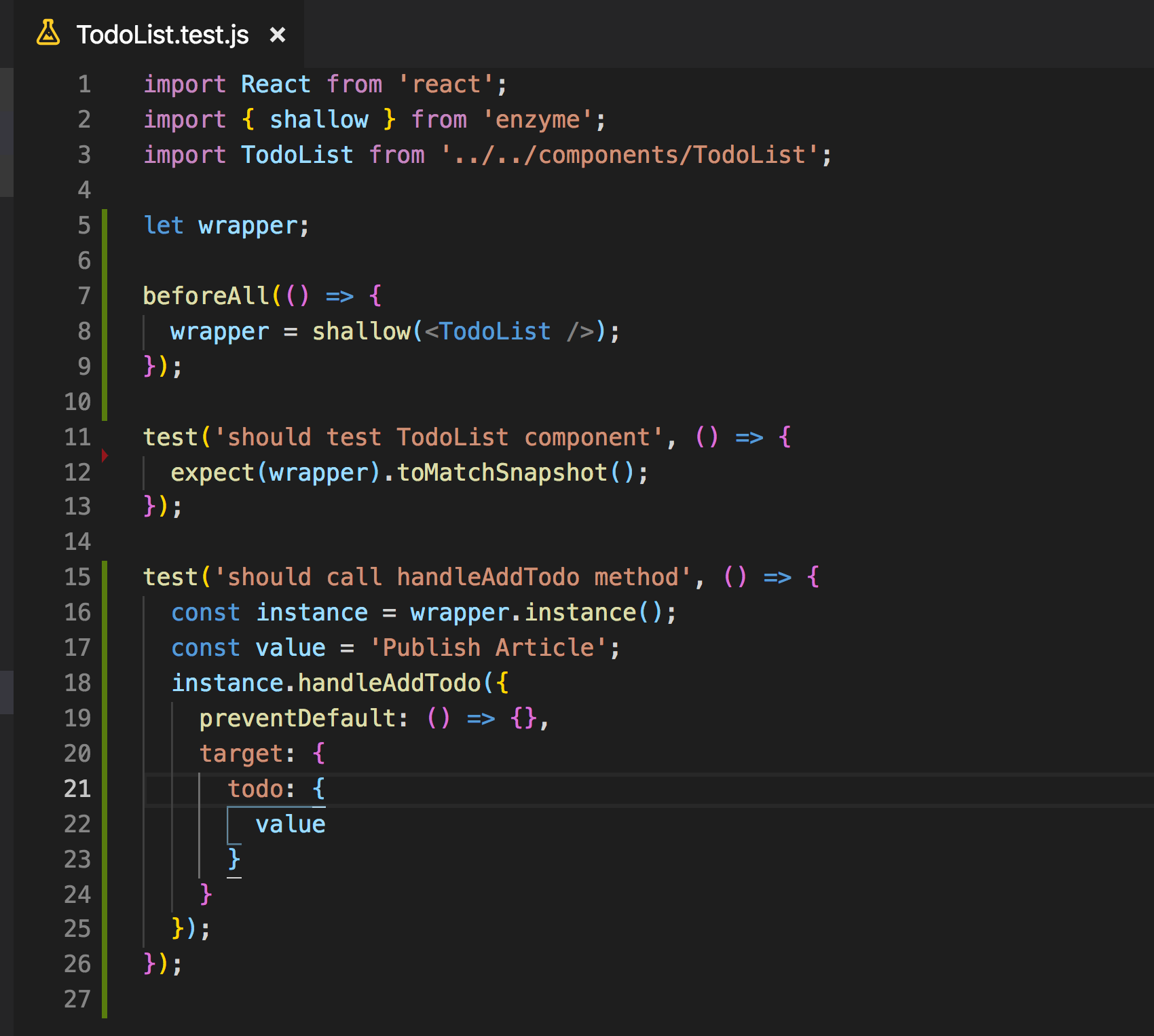 That looks much better now.
**You can find complete source code for this application [here](https://github.com/myogeshchavan97/todolist_react_tests).**
That’s it for today. Hope you learned something new today.
I hope you've been enjoying my articles and tutorials I've been writing. If you found them useful, consider buying me a coffee! I would really appreciate it.
[
That looks much better now.
**You can find complete source code for this application [here](https://github.com/myogeshchavan97/todolist_react_tests).**
That’s it for today. Hope you learned something new today.
I hope you've been enjoying my articles and tutorials I've been writing. If you found them useful, consider buying me a coffee! I would really appreciate it.
[ ](https://www.buymeacoffee.com/myogeshchavan97)
**Don’t forget to subscribe to get my weekly newsletter with amazing tips, tricks, and articles directly in your inbox [here](https://yogeshchavan.dev).**
](https://www.buymeacoffee.com/myogeshchavan97)
**Don’t forget to subscribe to get my weekly newsletter with amazing tips, tricks, and articles directly in your inbox [here](https://yogeshchavan.dev).**