# How to Use React Portal to Create Custom Reusable Toast Component in React
In this article, we will create a custom toast component from scratch using React Portal.
**You can see the live demo of the final application [here](https://custom-toast.now.sh/).**
So let’s get started.
We will be using `create-react-app` to initialize the project.
Create a new project by running the following command:
```
npx create-react-app custom-toast
```
Once the project is created, delete all files from the `src` folder and create `index.js`, `App.js`, `styles.css` files inside the `src` folder. Also, create `components` and `utils` folder inside the `src` folder.
Now, open the `src/index.js` file and add the following contents inside it:
```
import React from 'react';
import ReactDOM from 'react-dom';
import App from './App';
import './styles.css';
ReactDOM.render(, document.getElementById('root'));
```
Open the `src/styles.css` and add the following contents inside it:
```
.App {
text-align: center;
}
a {
text-decoration: none;
background: #777;
color: #fff;
padding: 10px;
border: 1px solid #000;
border-radius: 2px;
display: inline-block;
margin-top: 200px;
letter-spacing: 1px;
font-size: 20px;
}
.toast {
width: 100%;
padding: 10px;
position: absolute;
background: #ccc;
color: #666;
font-size: 200%;
text-align: center;
left: 0;
top: 0;
right: 0;
transform: translateY(-100px);
animation: slideDown 3s;
}
@keyframes slideDown {
0%,
100% {
-webkit-transform: translateY(-100px);
}
10%,
90% {
-webkit-transform: translateY(0px);
}
}
.disabled {
pointer-events: none;
opacity: 0.3;
}
@media only screen and (max-width: 768px) {
body {
font-size: 13px;
}
a {
font-size: inherit;
}
.toast {
padding: 5px;
}
}
```
**We'll first add all the necessary contents inside the files and then we'll explore how the code works.**
So, Inside the `src/utils` folder create a `constants.js` file with the following code:
```
export const TOAST_TIMEOUT = 3000;
```
This will indicate when to hide the toast message. In this case, the message will be hidden after 3000ms i.e 3 seconds.
Inside the `src/components` folder, create `Toast.js` file with following code:
```
import { useState, useEffect } from 'react';
import { TOAST_TIMEOUT } from '../utils/constants';
import ReactDOM from 'react-dom';
const Toast = props => {
const [node] = useState(document.createElement('div'));
const removeNode = () => {
if (document.querySelector('#toast').children.length) {
document.querySelector('#toast').childNodes[0].remove();
}
};
useEffect(() => {
if (props.show) {
document
.querySelector('#toast')
.appendChild(node)
.classList.add('toast');
setTimeout(() => {
removeNode();
props.hideToast();
}, TOAST_TIMEOUT);
} else {
removeNode();
}
return () => removeNode();
}, [node, props]);
return ReactDOM.createPortal(props.children, node);
};
export default Toast;
```
And now, Inside the `src/App.js` file add the following code:
```
import React, { useState } from 'react';
import Toast from './components/Toast';
const App = () => {
const [show, setShow] = useState(false);
const showToast = () => {
setShow(true);
};
const hideToast = () => {
setShow(false);
};
return (
);
};
export default App;
```
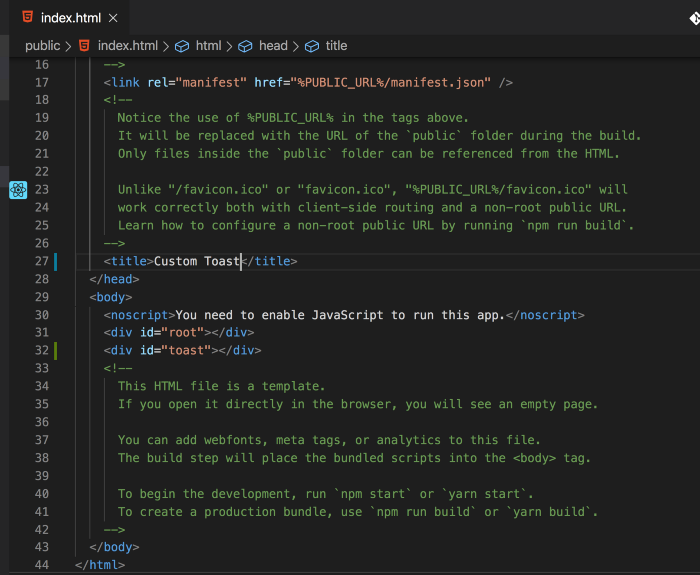
Now, open `public/index.html` and add
```
```
after
```
```
Now, run the application by executing the `yarn start` command from the terminal/command prompt.
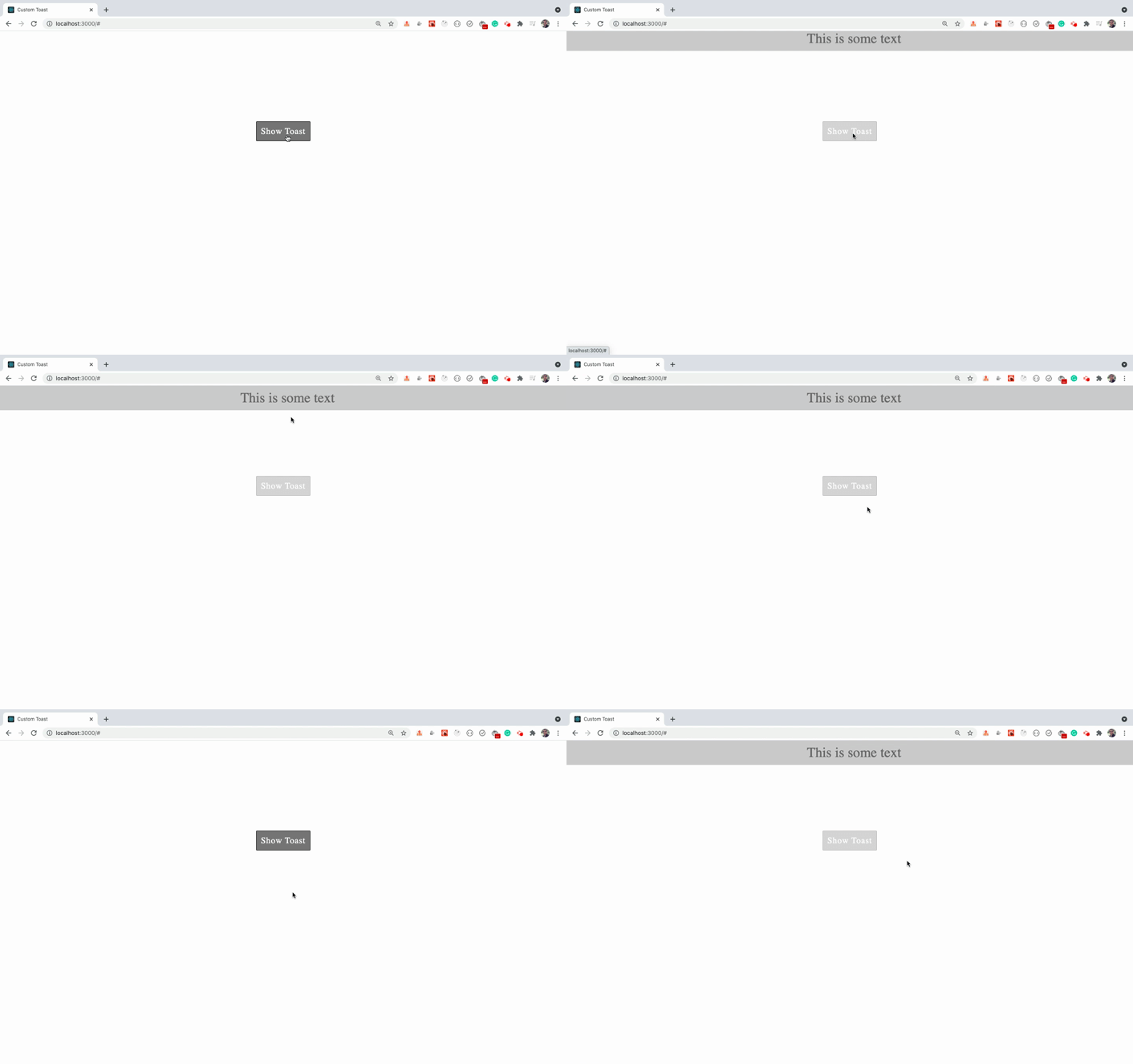
As you can see, when we click on the `Show Toast` button, the toast notification is shown for about 3 seconds and it's hidden again.
Also when the toast notification is shown, the `Show Toast` button disabled so the user will not be able to click the button again and it's enabled again when the toast notification is hidden.
Let’s understand the code from `Toast.js` which has the main logic for toast.
* To display toast, we are using the `ReactDOM.createPortal` method (added in React version 16) in the render method which allows us to display elements outside the root container which is helpful to display a modal or, in our case, a toast.
* We have added div with id toast inside `index.html` alongside the div with id `root` where we will be displaying the toast message.
* To use our Toast component we have used it like this inside the `App.js` file:
```
This is some text
```
* When we add the text between the opening and closing tag of the component, the text will be available inside that component in `props.children` or `this.props.children` property which we are passing to the `createPortal` method inside the `Toast.js` file:
```
ReactDOM.createPortal(props.children, node)
```
* We have initialized state with the HTML div element using `document.createElement('div')` so we can later use it to add or remove from the toast div which is added in `index.html` file:
```
```
* Inside the `useEffect` hook, we are adding the node to toast div from `index.html` and adding the CSS for it so the CSS will not be applied by default but only when we want to display the toast message.
* We are passing an array `[node, props]` as the second parameter to the `useEffect` hook so the code inside `useEffect` will be executed only when node or props are changed which is similar to the `componentDidUpdate` lifecycle method.
* We have also added the `removeNode` method which we call when the component is unmounted by returning a function from the `useEffect` hook.
* We are using CSS animation for displaying the toast message and hiding it after 3 seconds as declared in CSS for the toast `animation: slideDown 3s`
* When the toast is hidden, we are setting the show state flag to false so when we again click on the `Show Toast` button, a toast message will be shown again.
* We are also disabling the `Show Toast` button once we click on it so the user will not click it unnecessarily and we enable it once the toast is hidden.
### Thanks for reading!
**You can find the complete source code for this application in [this repository](https://github.com/myogeshchavan97/custom-toast) and live demo [here](https://custom-toast.now.sh/)**
Check out my recently published [Mastering Redux](https://master-redux.yogeshchavan.dev/) course.
In this course, you will learn:
* Basic and advanced Redux
* How to manage the complex state of array and objects
* How to use multiple reducers to manage complex redux state
* How to debug Redux application
* How to use Redux in React using react-redux library to make your app reactive.
* How to use redux-thunk library to handle async API calls and much more
and then finally we'll build a complete [food ordering app](https://www.youtube.com/watch?v=2zaPDfCKAvM) from scratch with stripe integration for accepting payments and deploy it to the production.
[ ](https://bit.ly/3w0DGum)
**Want to stay up to date with regular content regarding JavaScript, React, Node.js? [Follow me on LinkedIn](https://www.linkedin.com/in/yogesh-chavan97/).**
[
](https://bit.ly/3w0DGum)
**Want to stay up to date with regular content regarding JavaScript, React, Node.js? [Follow me on LinkedIn](https://www.linkedin.com/in/yogesh-chavan97/).**
[ ](https://www.buymeacoffee.com/myogeshchavan97)